Creating and Managing Meeting Types
Last updated: March 16, 2026
Meeting Types allow you to create templates for different kinds of meetings so Workmate can schedule them according to specific rules.
Each meeting type is associated with a Code Word — a keyword that you mention in an email when requesting a meeting. When Workmate detects that code word in the conversation, it understands that the corresponding meeting type should be used.
This allows Workmate to apply different scheduling rules depending on the context of the meeting. If you mention a specific code word, Workmate will use the settings defined for that meeting type instead.
Meeting Types are configured under Meeting Types on the Assistant page.
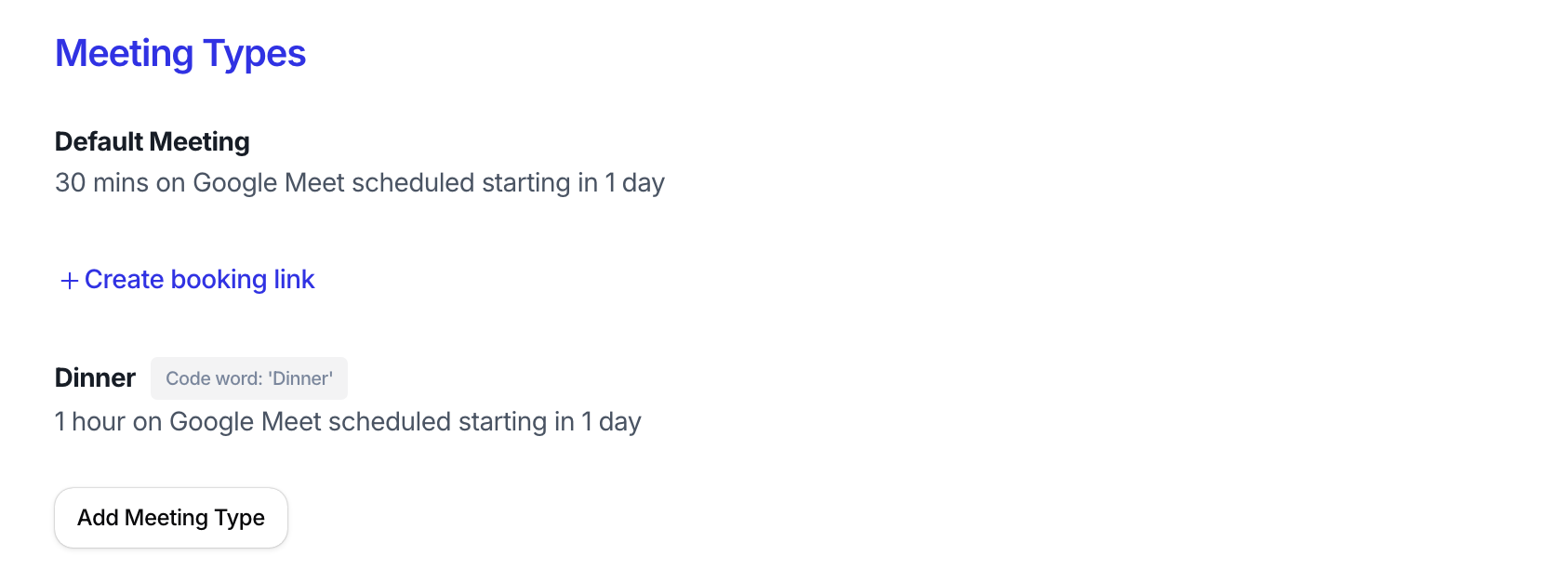
Default Meeting
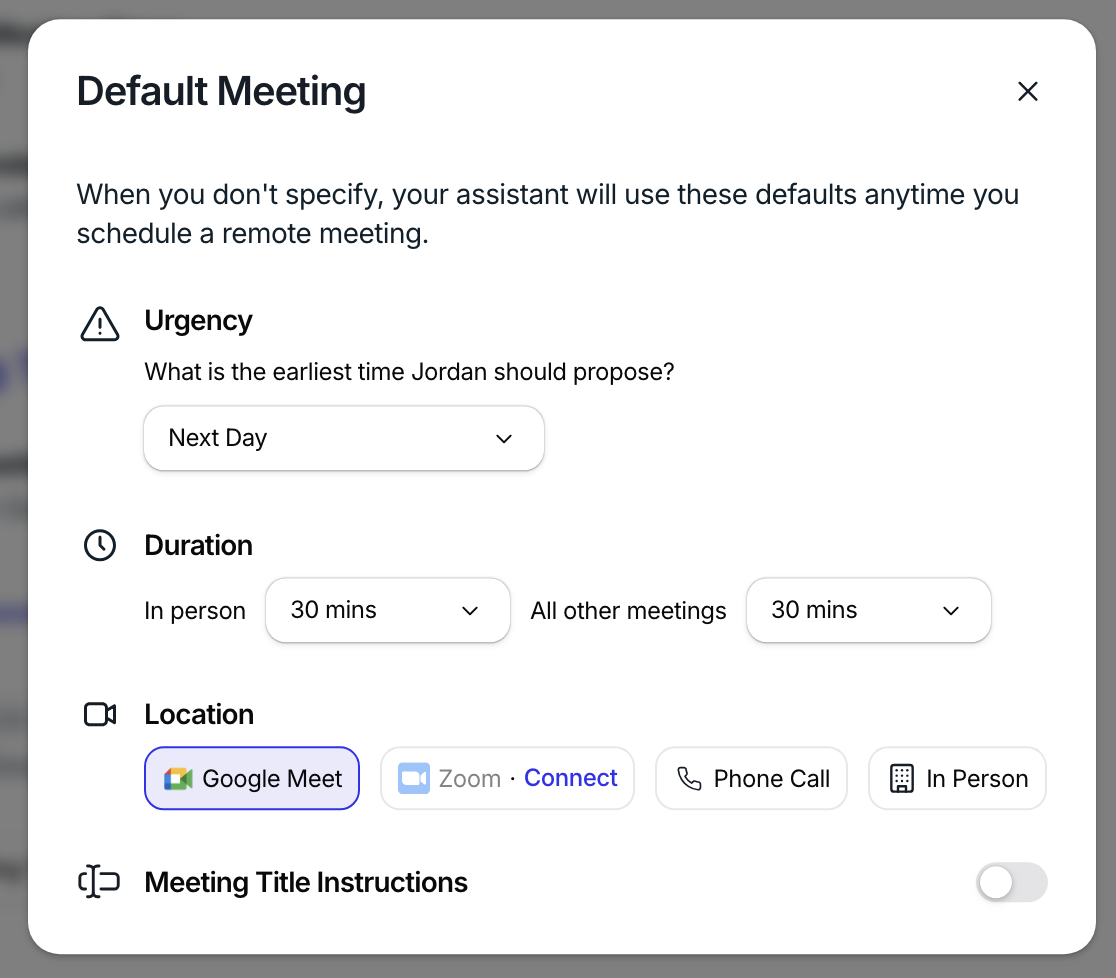
Every account includes a Default Meeting template.
This is the meeting type Workmate will use when no code word is mentioned in the conversation.
For example, a default meeting might be configured as:
Duration: 30 minutes
Location: Google Meet
Scheduling lead time: Starting in 1 day
In most cases, Workmate will use this template when coordinating meetings.
Custom Meeting Types
You can create custom meeting types for meetings that follow different rules.
Examples might include:
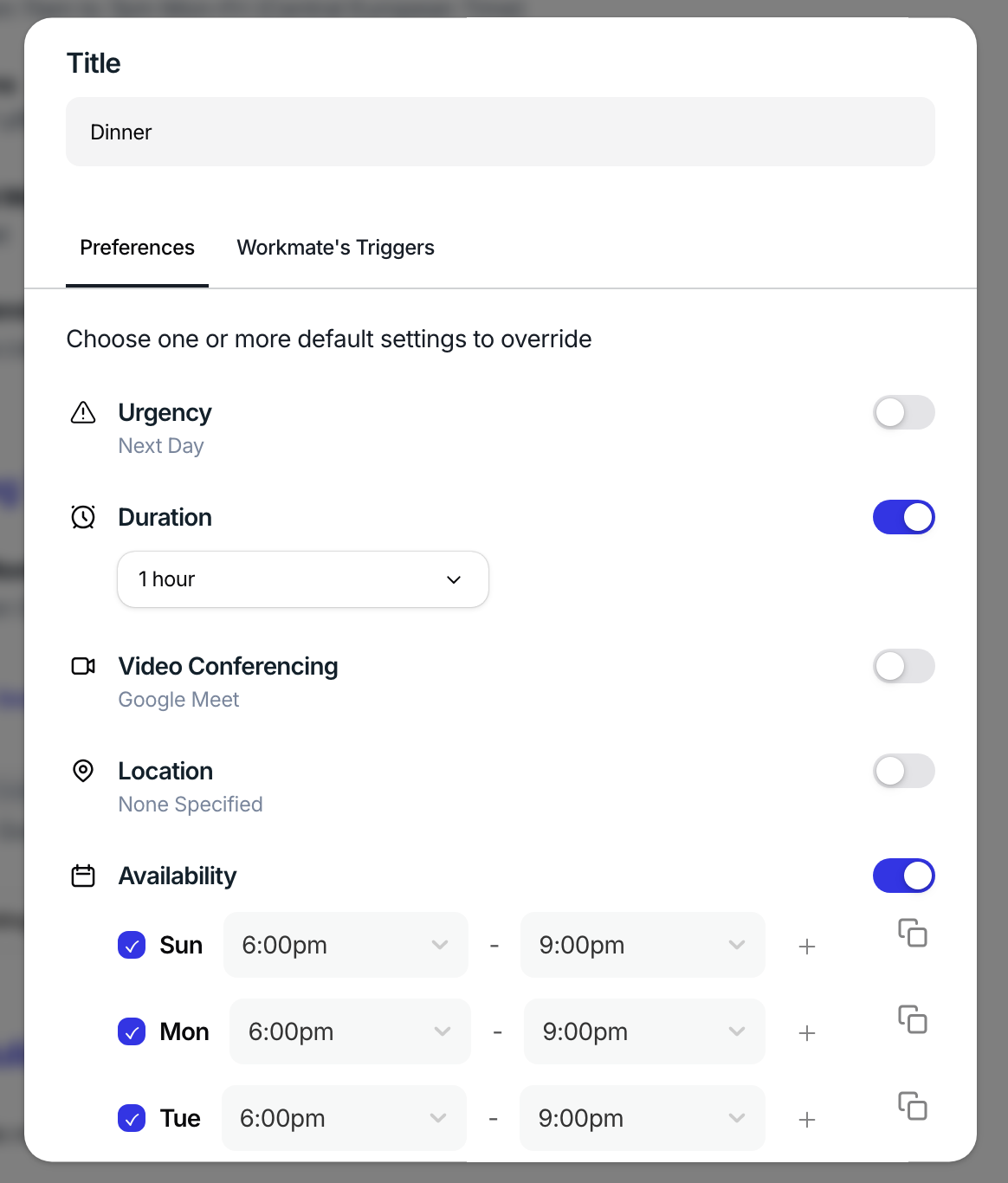
Dinner — a 1-hour meeting scheduled in the evening
Check-in — a 30-minute internal sync
Mediation — a longer, structured session
When you mention the code word associated with that meeting type in an email, Workmate will apply the configuration for that meeting automatically.
For example:
“Let’s schedule a dinner next week.”
Workmate will detect the code word Dinner and apply that meeting type’s rules instead of the default scheduling behavior.
How Code Words Work
Each meeting type includes a Code Word.
A code word is the keyword Workmate looks for in a conversation to determine which meeting template to use.
When a code word is detected, Workmate will:
Apply the duration defined for that meeting type
Use the preferred location
Follow the lead time rules
Schedule the meeting according to that template
If no code word is detected, Workmate will use the Default Meeting configuration and your standard scheduling preferences.
Meeting Type Settings
Each meeting type includes a few key settings that define how that meeting should be scheduled. These include the duration of the meeting (for example, 30 minutes or 1 hour), the preferred location such as Google Meet, Zoom, or an in-person location, and a scheduling lead time, which determines how soon the meeting can be booked (for example, “starting in 1 day” means the meeting cannot be scheduled on the same day). Each meeting type is also associated with a Code Word — a keyword you can mention in an email to signal to Workmate that this specific meeting type should be used instead of the default scheduling behavior.
To create a new meeting type, click “Add Meeting Type” and configure the settings for that meeting, including the code word that Workmate will recognize when you want to trigger it in a conversation.