Configuring Automations (Follow-ups, Updates, Instant Scheduling)
Last updated: March 16, 2026
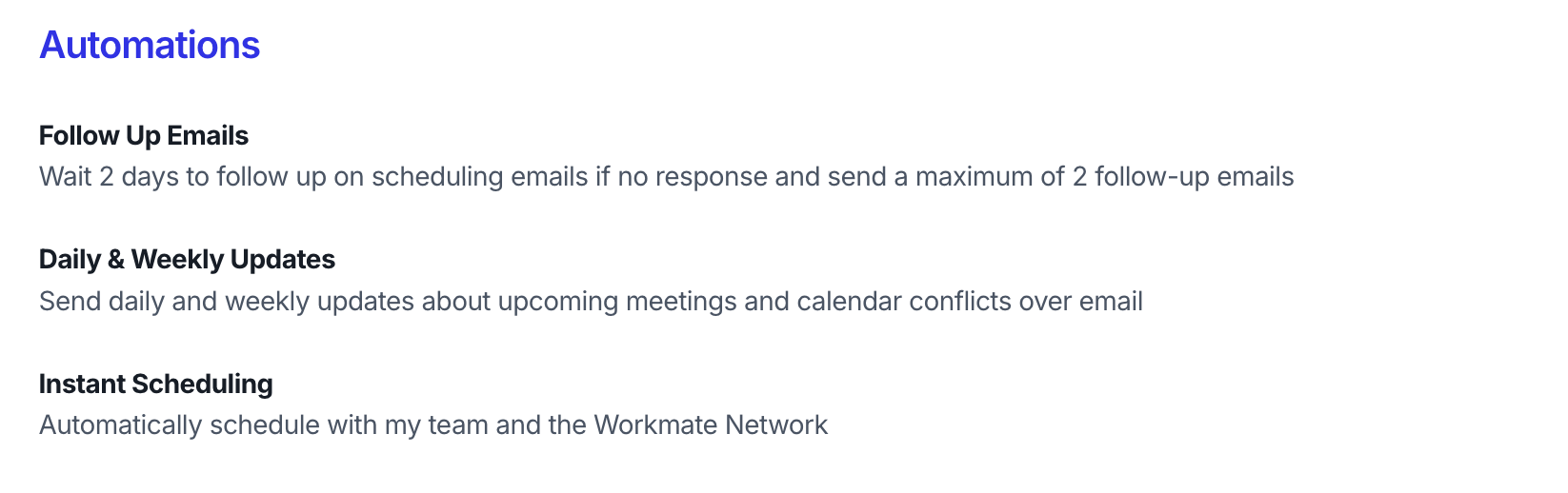
The Automations section on the Assistant page controls several behaviors that allow Workmate to manage scheduling tasks automatically on your behalf.
These automations help reduce manual coordination by handling follow-ups, keeping you informed about your calendar, and optionally scheduling certain meetings instantly.
Follow-Up Emails
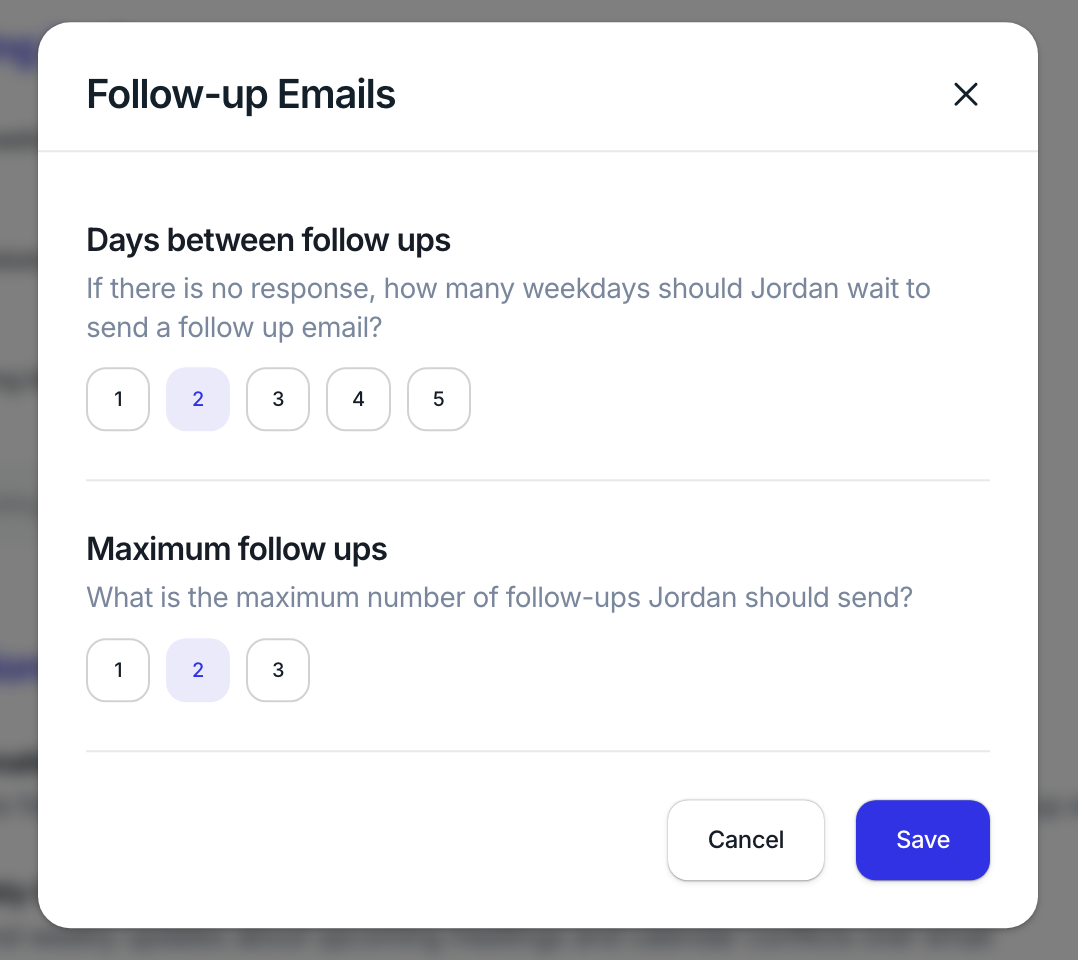
Workmate can automatically follow up when a scheduling email has not received a response.
Instead of manually checking conversations and reminding participants, Workmate can send polite follow-up messages to keep the scheduling process moving.
You can configure:
How long does Workmate wait before sending a follow-up (for example, 2 days after the last message)
The maximum number of follow-ups Workmate will send
For example, if someone does not respond to a scheduling email, Workmate can automatically send a reminder after the configured delay.
This helps ensure meetings do not stall simply because someone forgot to reply.
Daily & Weekly Updates
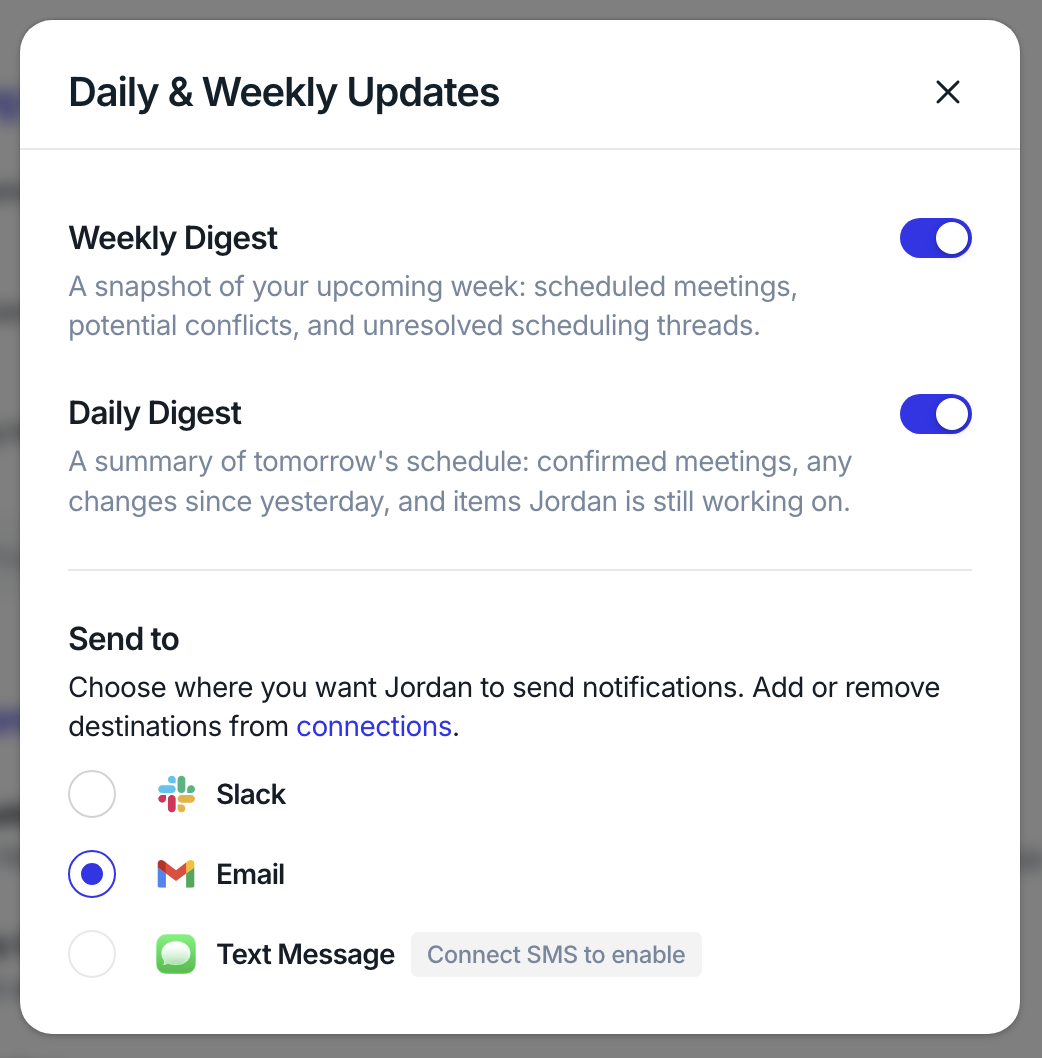
Workmate can send email summaries of your schedule and scheduling activity.
These updates help you stay aware of upcoming meetings and any potential calendar issues without needing to constantly check your calendar.
Depending on your settings, updates may include:
Upcoming meetings
Recently scheduled meetings
Calendar conflicts
Scheduling activity handled by Workmate
You can choose to receive these updates daily, weekly, or both depending on how frequently you want visibility into your schedule.
Instant Scheduling
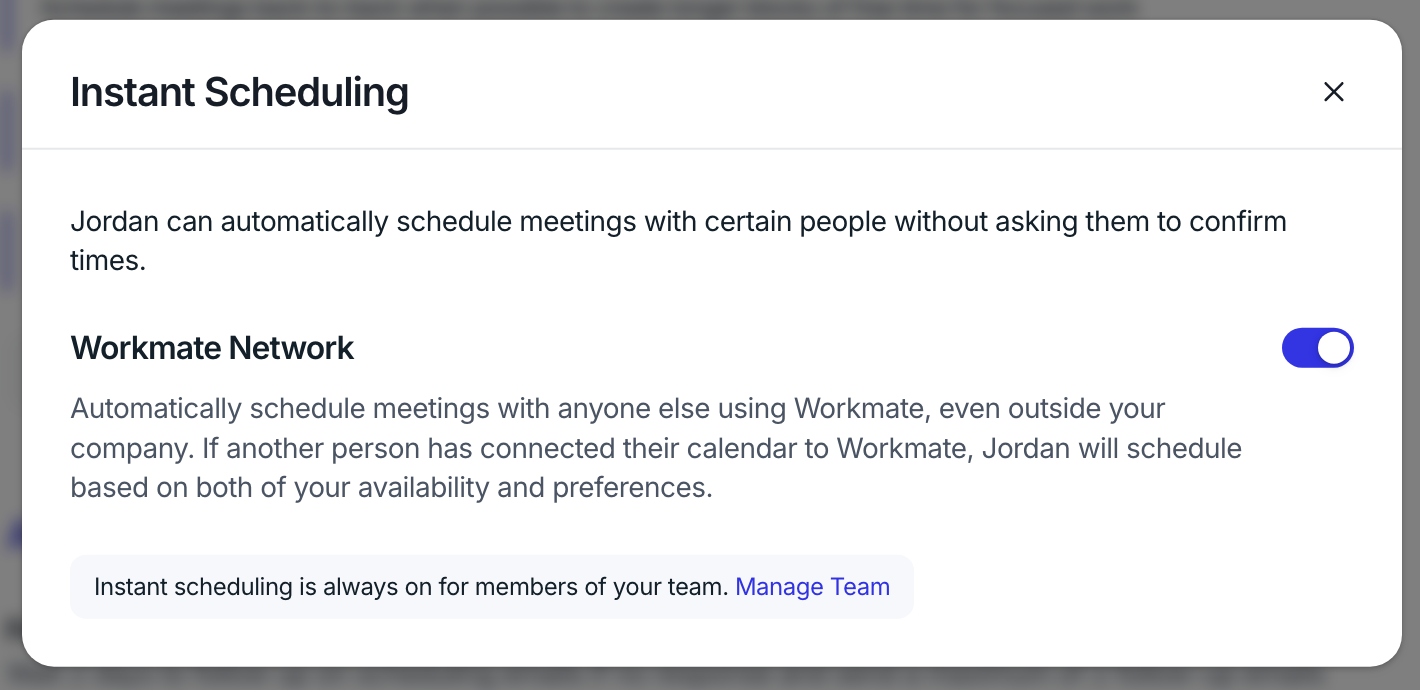
When Instant Scheduling is enabled, Workmate can automatically book meetings with certain contacts without first proposing multiple time options.
Instead of sending a message asking participants to choose from several times, Workmate simply identifies the best available slot based on everyone’s availability and schedules the meeting immediately.
Instant scheduling works with:
Your Workmate team members
Contacts in your Scheduling Network
This is particularly useful for meetings with frequent collaborators where availability is already known.
If Instant Scheduling is disabled, Workmate will continue to follow the normal process of proposing available time options before scheduling.