Configuring Your Work Hours and Schedule
Last updated: March 16, 2026
The My Schedule section allows you to define when Workmate is allowed to schedule meetings on your behalf.
These settings help your assistant understand your availability, avoid conflicts, and schedule meetings in a way that respects your working hours and preferences.
You can configure these settings from the Assistant page, under My Schedule.

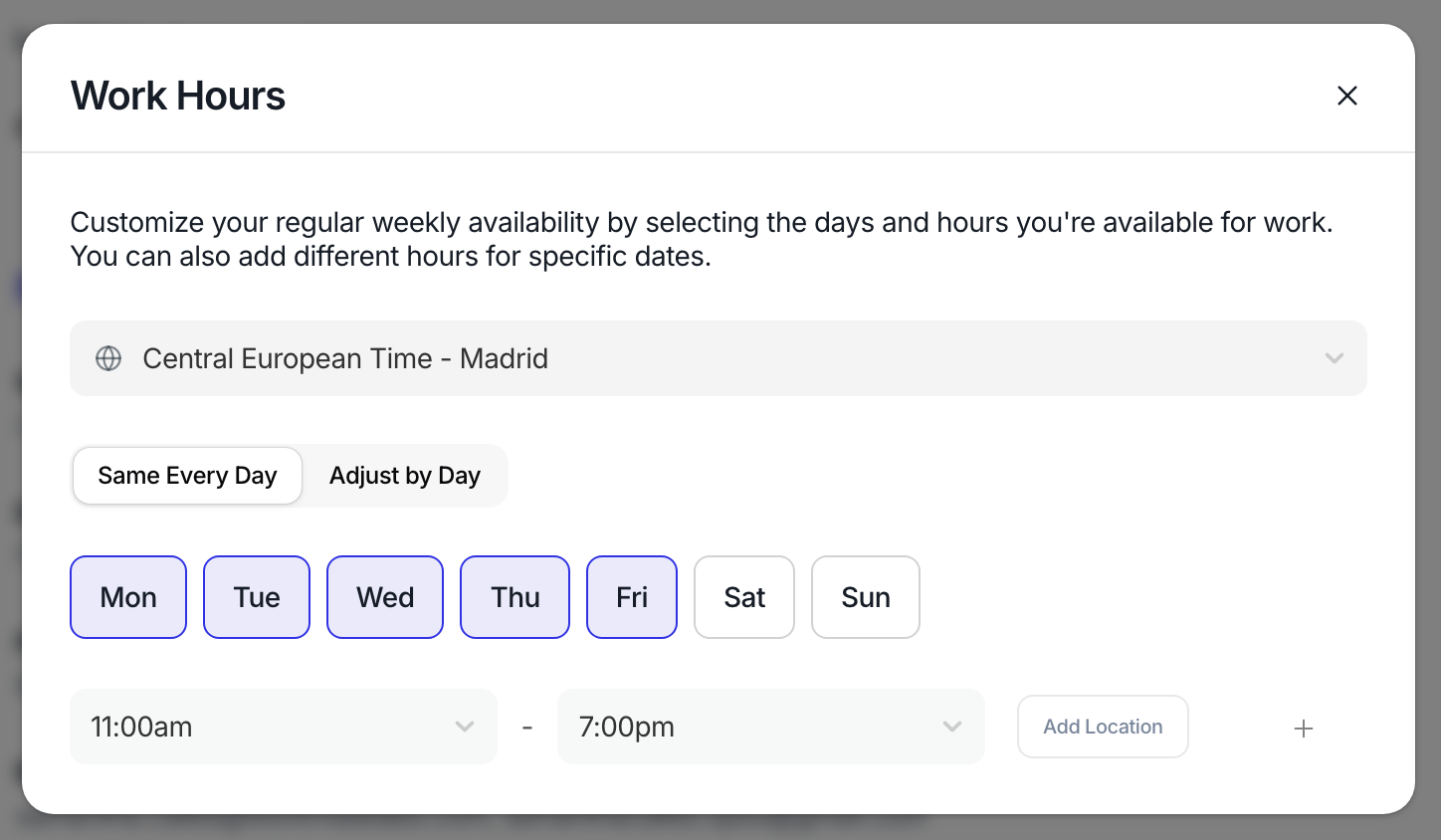
Work Hours
Your Work Hours define the general time window when Workmate is allowed to schedule meetings.
Workmate will only suggest meeting times within this window, unless your scheduling preferences specify otherwise.
These hours represent your default availability range and help ensure meetings are not scheduled outside of your typical working hours.
Exceptions
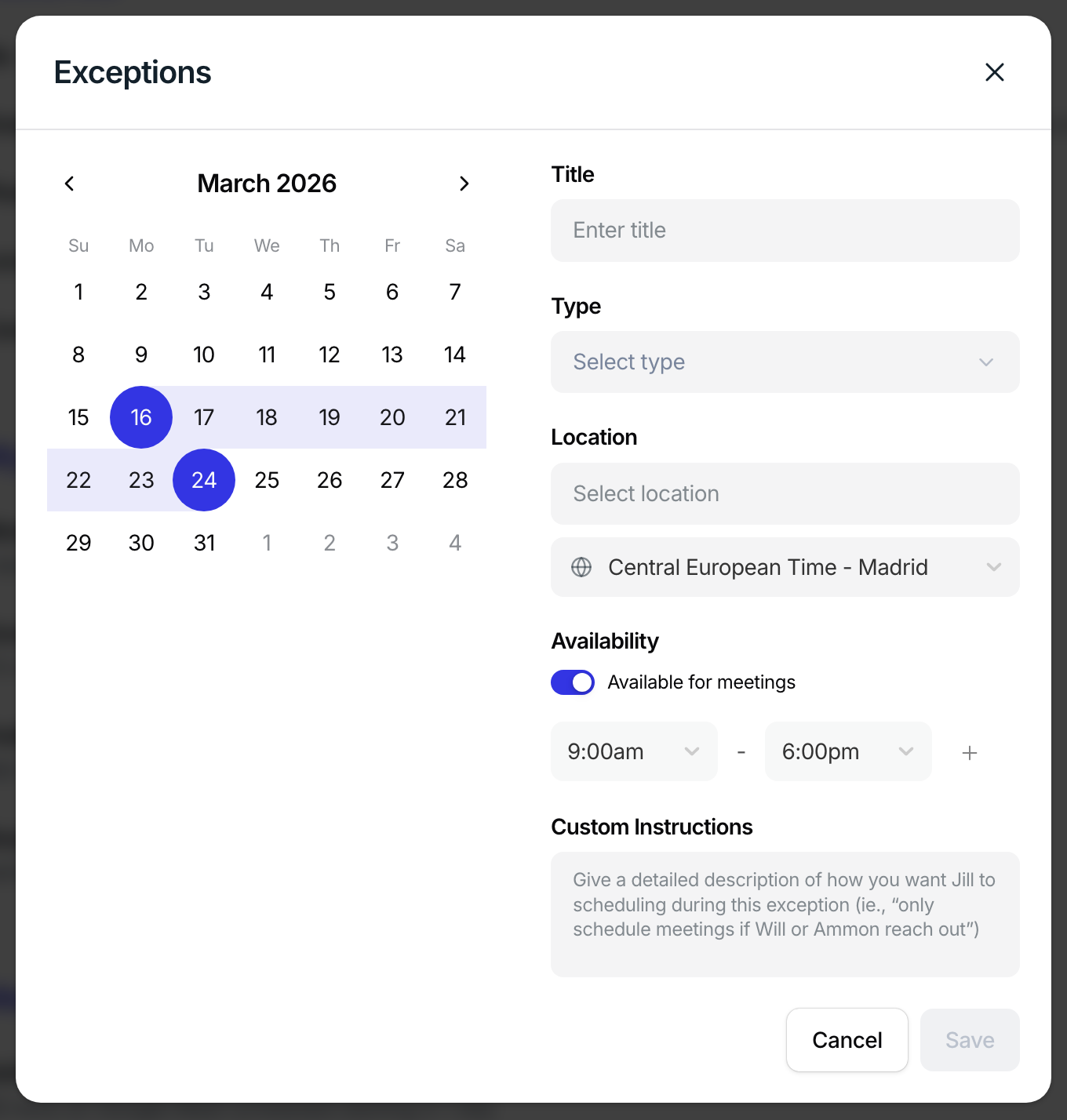
The Exceptions section allows you to temporarily adjust your availability for specific dates, such as holidays, time off, or travel.
Instead of following your normal work schedule, Workmate will use these exception settings when coordinating meetings during those periods.
Exceptions are especially useful when you are:
Traveling
Taking time off
Observing holidays
Working on a different schedule temporarily
When creating an exception for travel, you can configure additional details so Workmate schedules meetings appropriately while you are away.
You can specify:
Travel dates
Set the start and end dates of your travel period.
Travel location
Select where you will be traveling. Workmate will automatically adjust scheduling to match the local time zone during that period.
Availability during travel
Choose whether you will be available for meetings while traveling.
For example, you may indicate that you are:
Completely unavailable for meetings
Available only during certain hours
Available only for certain types of meetings
Local meeting hours
If you are available, you can specify the time window (in the local time zone of your travel location) when meetings may be scheduled.
Meeting types allowed
You can also define what kinds of meetings are acceptable during travel, helping Workmate avoid scheduling meetings that may not be appropriate while you’re away.
Preferred Meeting Times
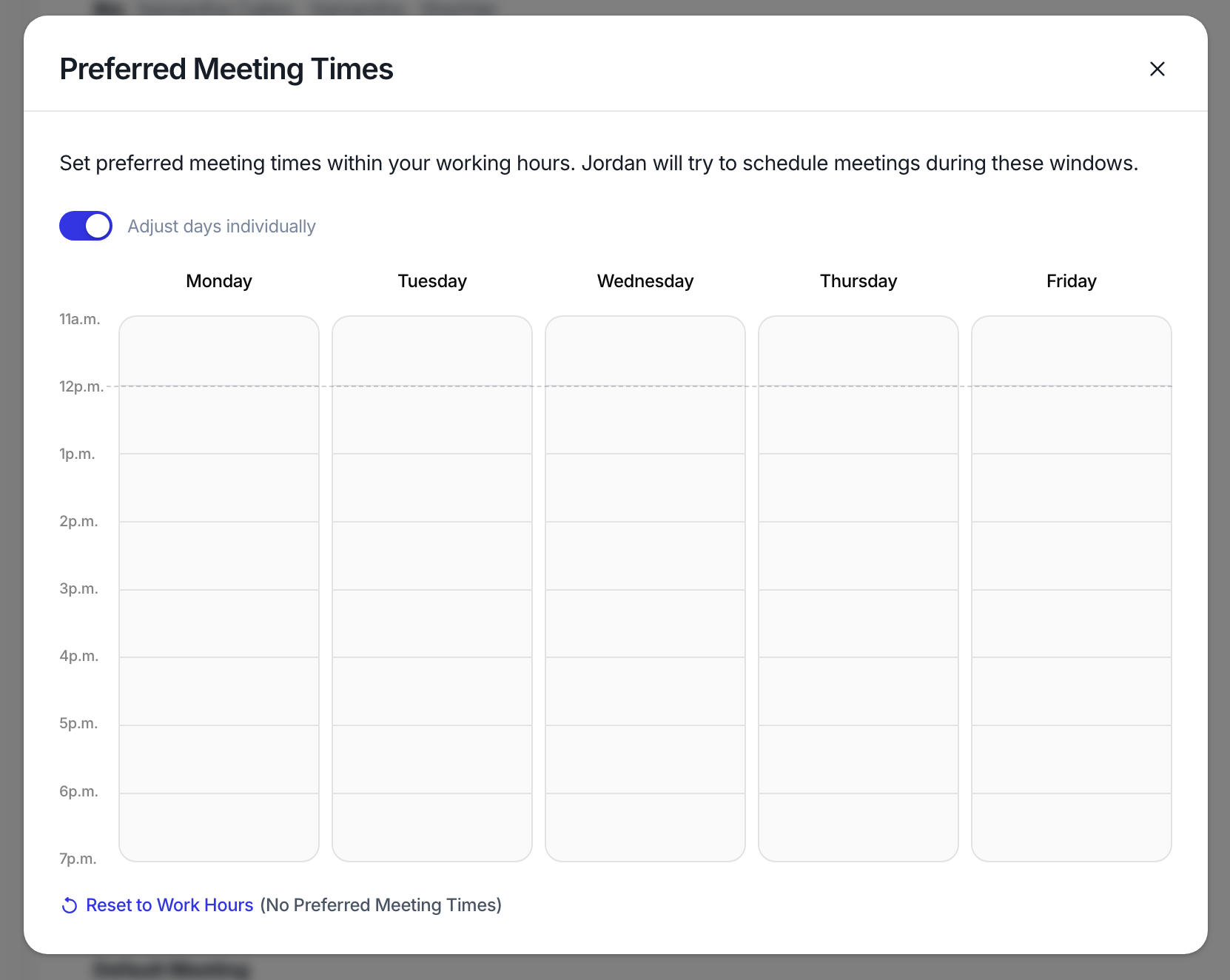
Preferred Meeting Times allow you to define more specific scheduling windows inside your general work hours.
For example, even if your work hours are:
9:00 AM – 6:00 PM
You might prefer meetings only during:
10:00 AM – 4:00 PM
or different times on different days.
These preferences help Workmate prioritize scheduling during the times that work best for you.
Workmate will try to suggest times within your preferred windows before suggesting other available times.
Busy Calendars
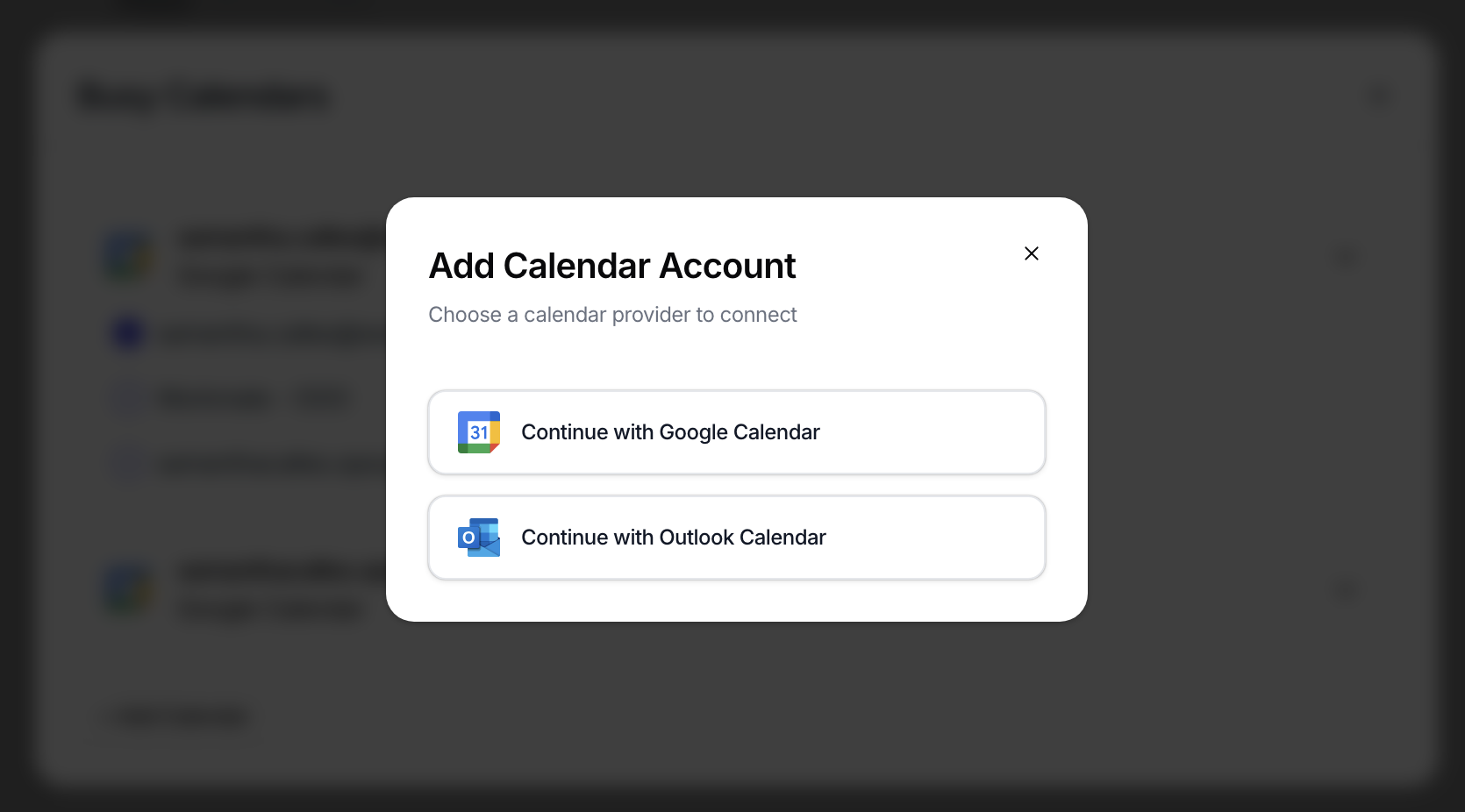
The Busy Calendars setting defines which connected calendars Workmate should check when determining your availability.
For example, you might have multiple calendars connected:
Work calendar
Personal calendar
Shared team calendar
By selecting calendars in this section, Workmate will check those calendars for Free/Busy conflicts before suggesting meeting times.
Workmate will never propose meeting times when your selected calendars show:
Busy
Tentative
This ensures meetings are only scheduled when you are truly available.
How These Settings Work Together
Workmate combines all of these settings when coordinating meetings.
When proposing times, Workmate will:
Check your Work Hours
Exclude days listed in Exceptions
Prioritize Preferred Meeting Times
Check your selected Busy Calendars for conflicts
Only times that satisfy all of these conditions will be suggested.
This helps ensure meetings are scheduled in a way that matches your real availability and preferences.