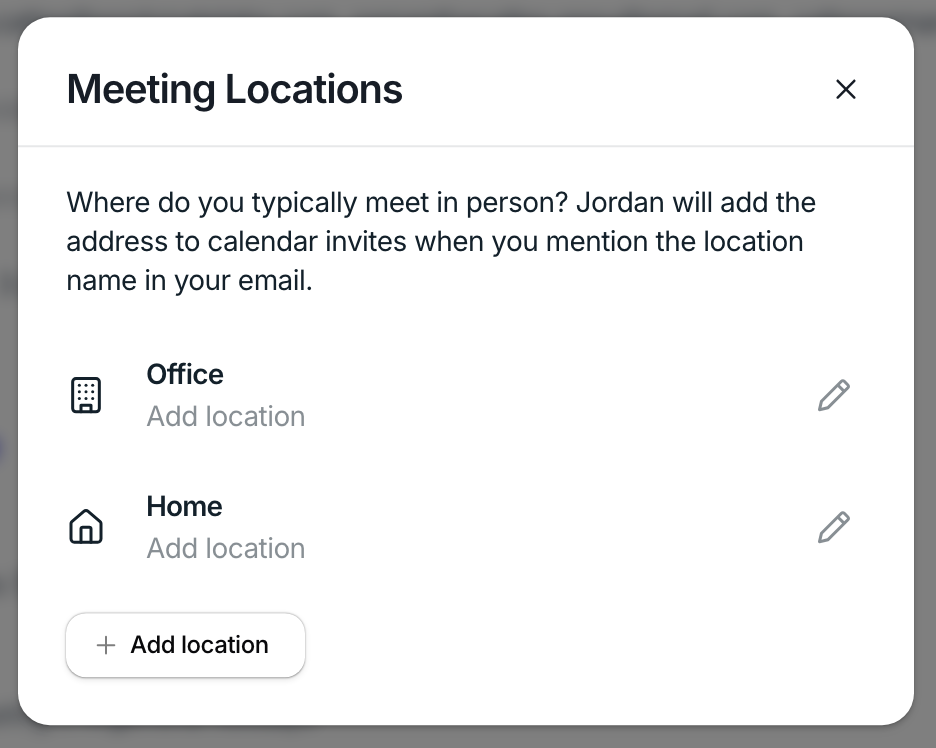
Specifying Meeting Locations in Natural Language
Last updated: March 16, 2026
You can tell Workmate where a meeting should take place simply by mentioning the location in your email.
Workmate understands both saved locations from your profile and new locations you describe in natural language. When it recognizes a location, it automatically adds the appropriate address or meeting link to the calendar invitation.
This allows you to schedule meetings naturally without needing to manually configure the location each time.
Using Saved Locations
You can save frequently used locations in your profile so Workmate can recognize them when you reference them in an email.
For example, if you have saved a location called Office, you can simply write:
“Let’s meet at the office next week.”
Workmate will automatically insert the address associated with Office into the calendar invite.
This helps ensure your meeting invitations always include the correct location without needing to type the full address each time.
Saved locations are especially useful for places you meet often, such as:
Office locations
Home office
Common meeting venues
Regular client locations
Describing New Locations
You can also describe a location directly in your email, even if it has not been saved in your profile.
For example:
“Set up lunch at Crif Dog on St. Marks St in NYC.”
Workmate will interpret the location and include it in the calendar invitation.
This allows you to schedule meetings at new places without needing to configure them ahead of time.
Scheduling Virtual Meetings
Workmate can also recognize when you mention a virtual meeting platform.
For example:
“Schedule a 30-minute Zoom with Billy.”
Workmate will automatically create the meeting using the appropriate video conferencing platform.
Available virtual meeting platforms depend on the services connected to your account (such as Zoom, Google Meet, or Microsoft Teams).
Where to Configure Meeting Locations
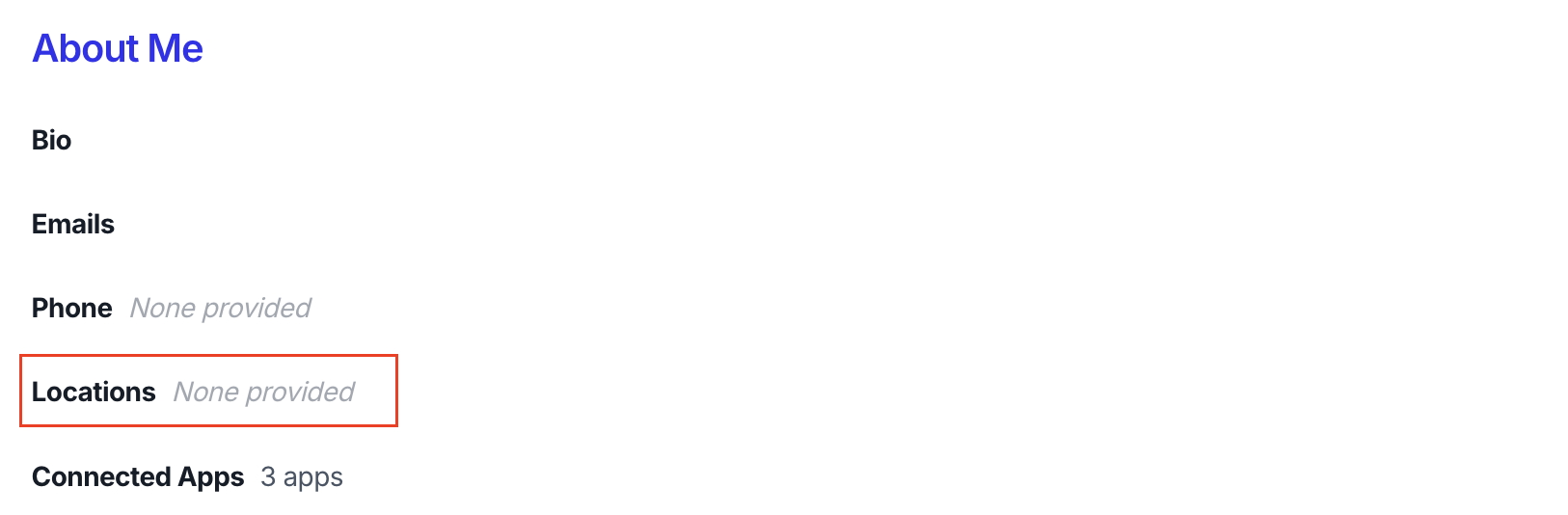
Saved meeting locations can be configured in your profile.
To manage them:
Go to Assistant
Open the About Me section
Navigate to Locations
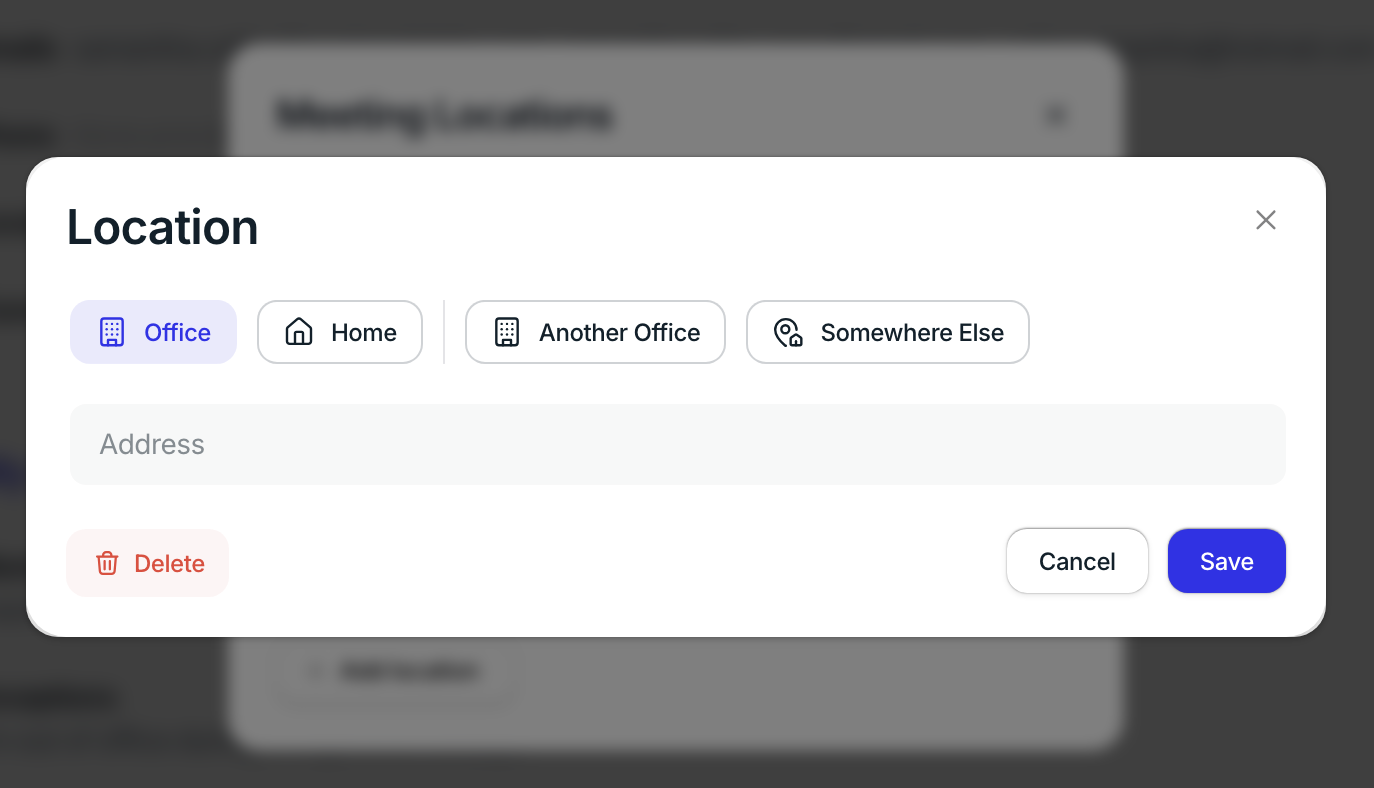
Add or edit the places where you typically meet
Once saved, Workmate will recognize these locations whenever you reference them in emails and automatically include the correct address in the calendar invite.