Setting Scheduling Preferences
Last updated: March 16, 2026
The Scheduling Preferences section allows you to define custom rules that guide how Workmate selects and proposes meeting times.
These preferences act as natural-language instructions that Workmate considers when coordinating meetings. They help the assistant better understand how you prefer your calendar to be managed.
For example, you might want meetings grouped, avoid scheduling late in the day, or prioritize certain participants.
Workmate interprets these preferences alongside your:
Work Hours
Exceptions
Preferred Meeting Times
Busy Calendars
Meeting Types and Code Words
to determine the most appropriate time slots.
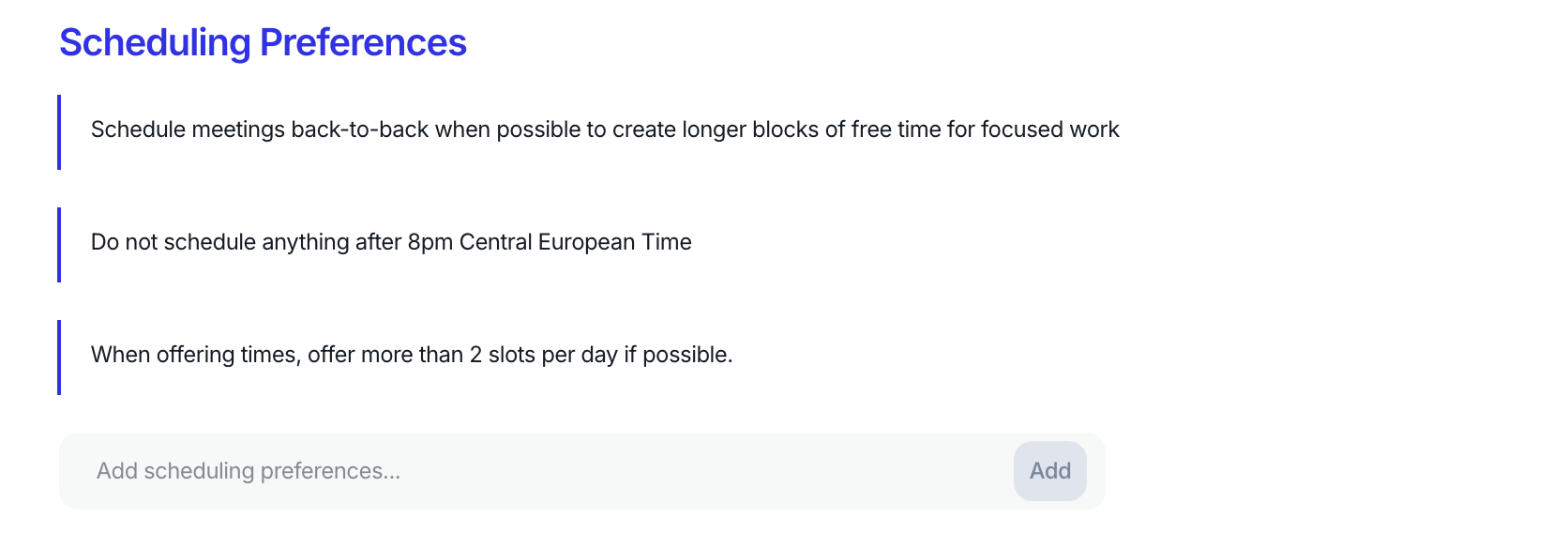
How Scheduling Preferences Work
When Workmate is coordinating a meeting, it evaluates multiple factors before proposing times.
Scheduling Preferences act as guidelines that influence this decision process.
For example, if you add a preference such as:
“Schedule meetings back-to-back when possible to create longer blocks of free time.”
Workmate will attempt to group meetings together rather than spreading them across the day.
These preferences do not replace your availability settings, but they help Workmate prioritize certain scheduling behaviors when multiple options are possible.
Examples of Scheduling Preferences
You can write preferences in plain language. Workmate will interpret these instructions when selecting and proposing meeting times. Make sure to be as specific as possible when adding these scheduling preferences.
Examples include:
• Schedule meetings back-to-back when possible to create longer blocks of free time for focused work
• Prioritize mornings for external meetings
• When meeting with will@example.com, always offer times before 4 PM ET
• Add a 30-minute travel buffer before and after in-person meetings
• Avoid scheduling meetings during lunch hours (12 PM–1 PM local time)
• Offer times across multiple days rather than only one day when possible
Because these instructions are written in natural language, you can customize them to reflect how you prefer your calendar to be managed.
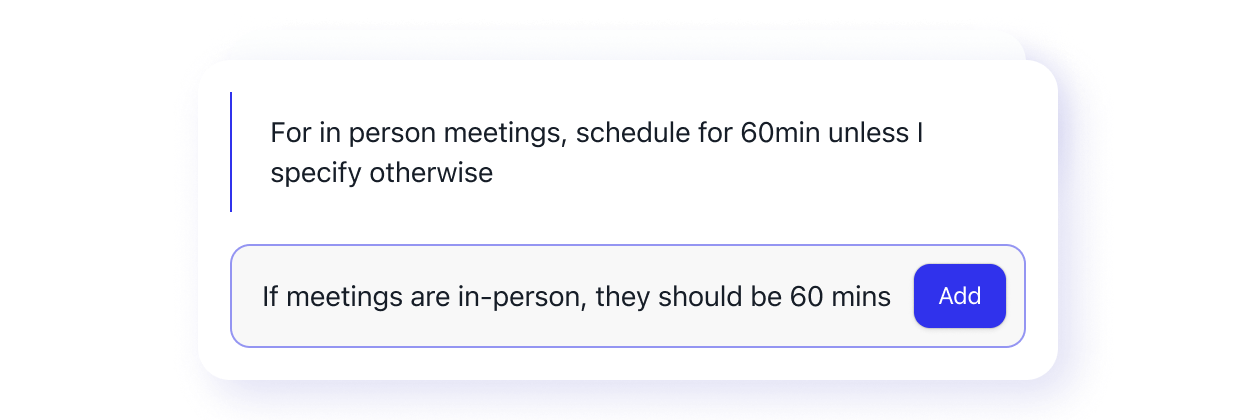
Adding a Scheduling Preference
To add a preference:
Navigate to Assistant → Scheduling Preferences
Type your rule into the text field
Click Add
You can create multiple preferences, and Workmate will consider all of them when coordinating meetings.
How Preferences Interact with Other Scheduling Rules
Scheduling Preferences work together with your other scheduling settings.
When Workmate chooses meeting times, it considers:
Work Hours – when meetings can be scheduled
Exceptions – days you are unavailable or traveling
Preferred Meeting Times – time windows you prefer
Busy Calendars – conflicts across your connected calendars
Meeting Types and Code Words – specific meeting configurations
Scheduling Preferences – behavioral rules that guide time selection
These preferences help Workmate schedule meetings in a way that better reflects your personal workflow.
When Scheduling Preferences Are Most Useful
Scheduling Preferences are particularly helpful when you want Workmate to follow specific scheduling patterns, such as:
Keeping mornings free for focused work
Avoiding late-day meetings
Prioritizing certain people or meeting types
Grouping meetings to reduce calendar fragmentation
By defining these preferences, you can shape how your assistant manages your calendar without needing to manually adjust each meeting.