Tracking and Managing Tasks
Last updated: March 16, 2026
Every scheduling request handled by Workmate becomes a Task.
Tasks allow you to track the progress of a meeting request and see exactly how Workmate is coordinating the scheduling process.
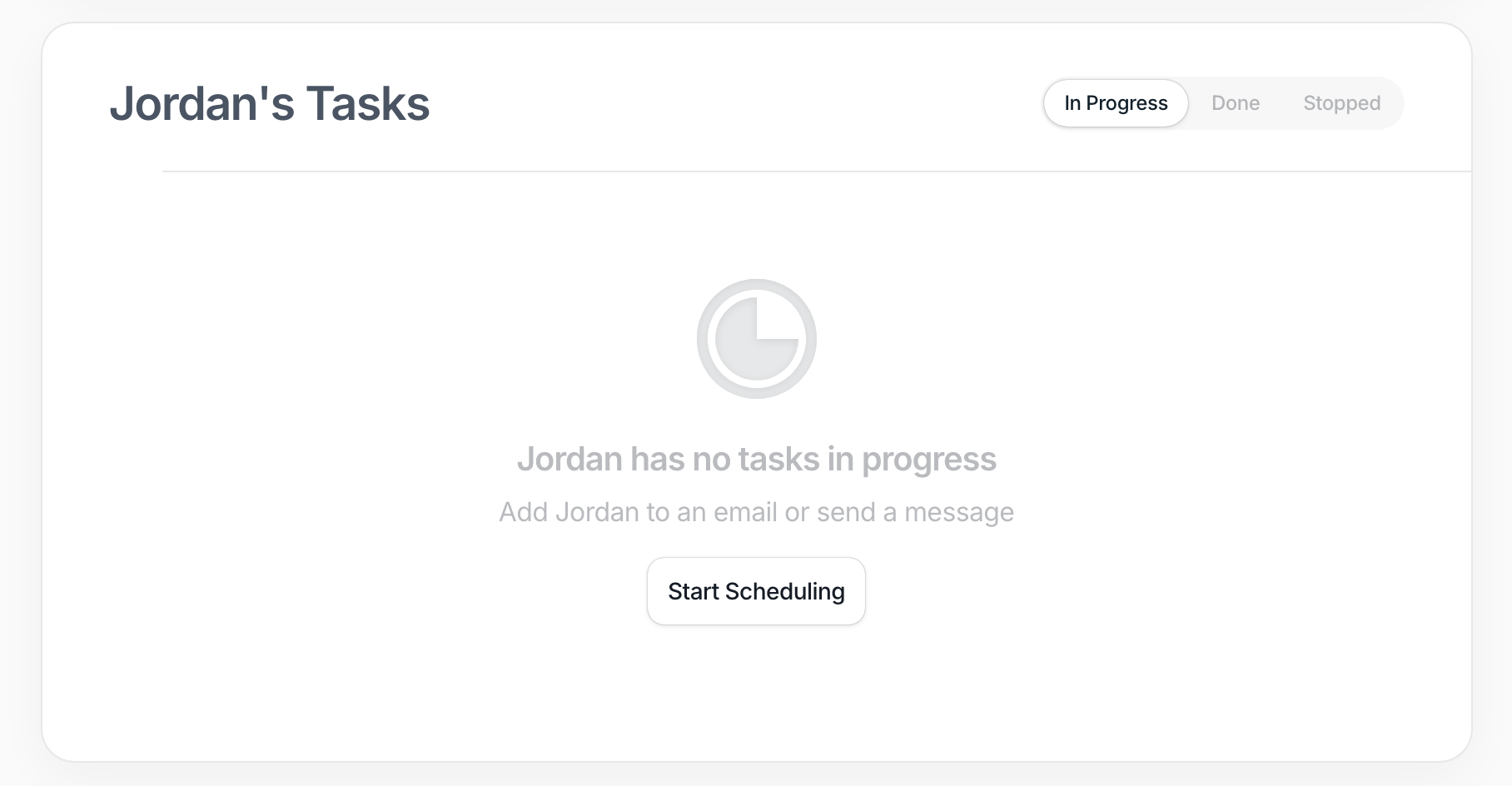
You can view all active and completed tasks on the Assistant page, under “[Your Workmate]’s Tasks.”
Task Statuses
Each task has a status that indicates its current stage in the scheduling process.
In Progress (yellow)
Workmate is actively coordinating the meeting. This may include proposing times, waiting for responses from participants, or sending follow-ups.
Done (green)
The meeting has been successfully scheduled and the calendar invitation has been sent.
Stopped (red)
The task was canceled or the scheduling process was stopped before a meeting was confirmed.
These statuses help you quickly understand which meetings are still being coordinated and which ones are complete.
Viewing Task Details
Click on any task to open its detail page, where you can see everything related to that scheduling request.
The task page includes:
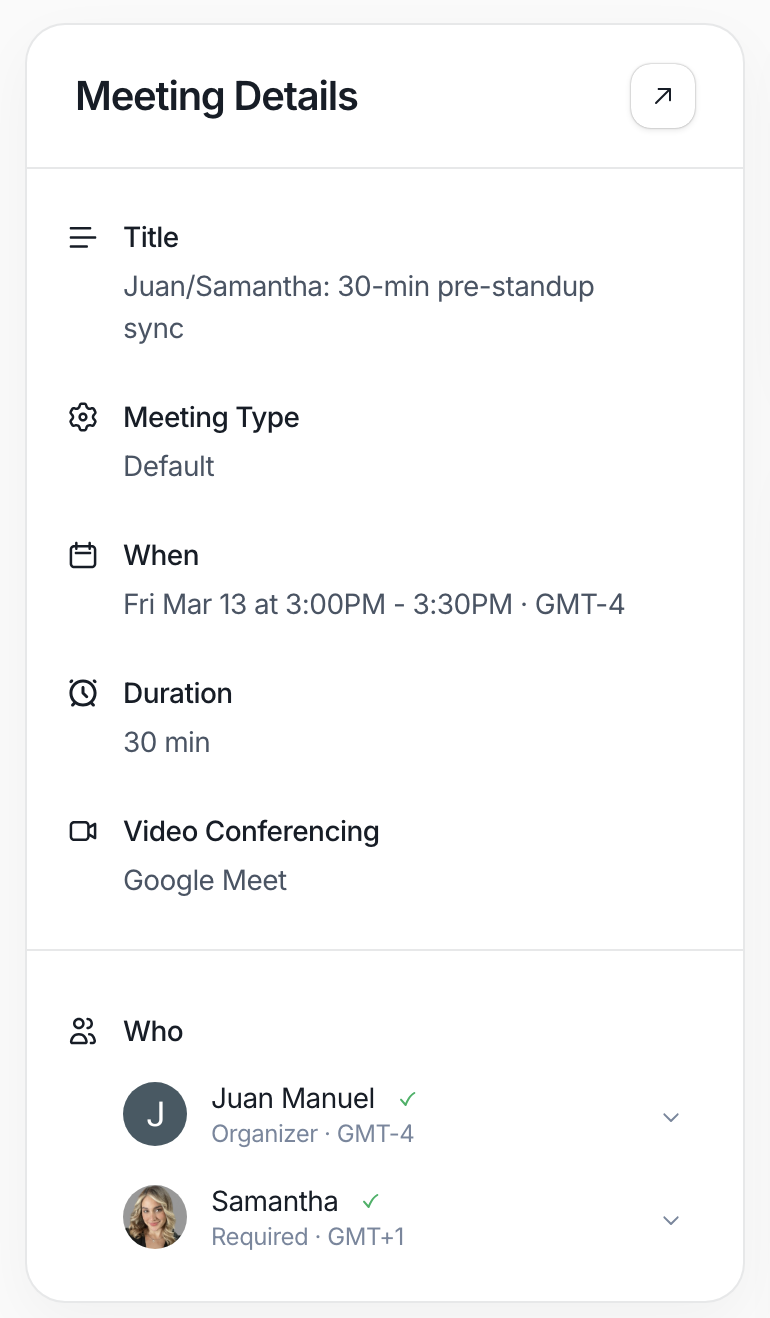
Meeting Details
Information about the meeting such as the title, meeting type, proposed or confirmed time (or TBD), duration, video conferencing platform, and participants.
Threads
The email conversation that triggered the scheduling request. This allows you to view the original discussion and any replies.
Activity Log
A timeline showing how the scheduling process unfolded — including when the task was created, when Workmate proposed time slots, and when messages were sent.
Chat Box
A field where you can send additional instructions to Workmate directly from the task page, such as clarifying preferences or updating the meeting request.
Stopping a Task
If you need to cancel or stop the scheduling process, you can do so in several ways:
Open the task menu and select Stop Task
Reply in the original email thread asking Workmate to stop scheduling
Send instructions through the chat box on the task page
Once stopped, the task status will change to Stopped.
