How to Schedule a Meeting
Last updated: March 16, 2026
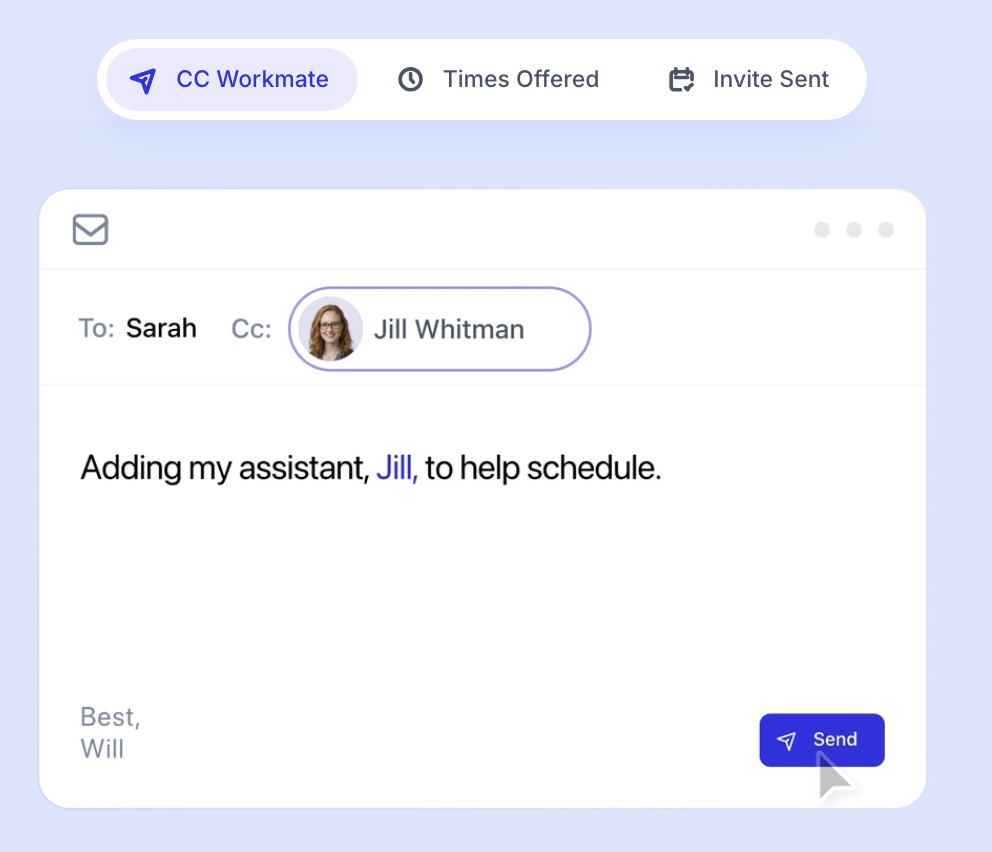
The most common way to use Workmate is by CC’ing your assistant on an email conversation.
Once included in the thread, Workmate takes over the scheduling process by coordinating with participants and proposing available meeting times based on your calendar and preferences.
Here’s how the workflow works.
Scheduling a Meeting via Email
To schedule a meeting using the CC method:
Compose an email to the person you want to meet with, or reply within an existing thread.
CC your Workmate’s email address (for example: jordan@workmate.com).
Send the email.
Once Workmate is included in the conversation, it will automatically take over the scheduling coordination.
What Happens Next
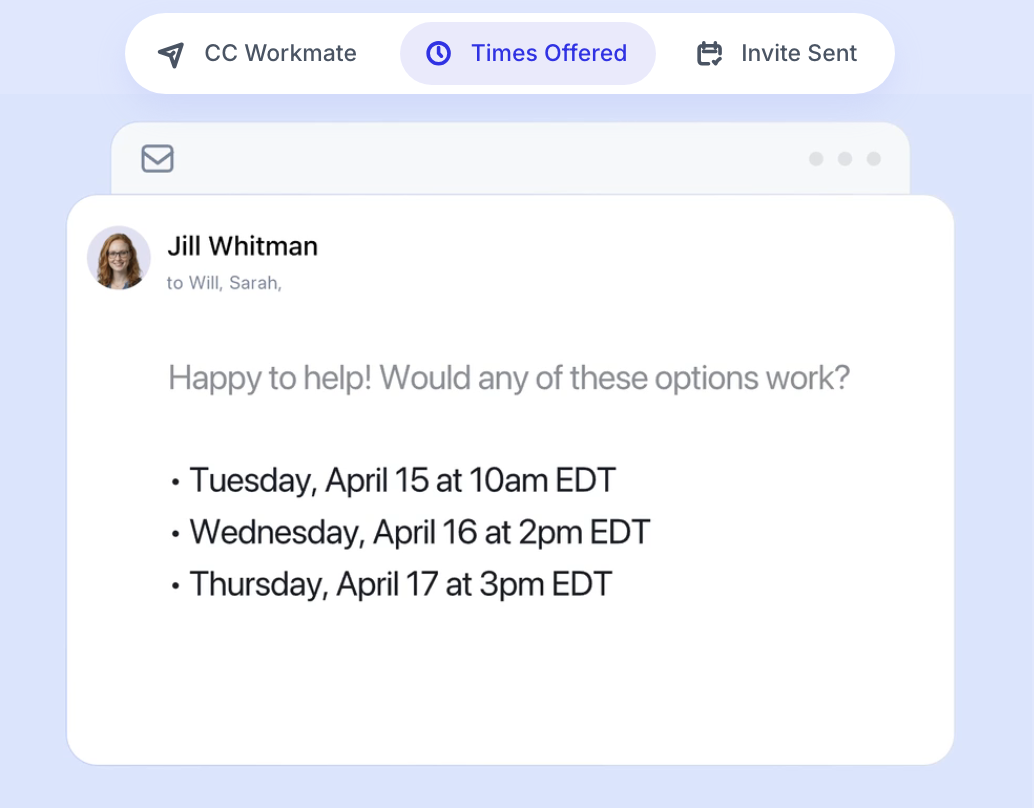
After receiving the email, Workmate will typically reply within 2–15 minutes with suggested meeting times.
The assistant determines these times using:
Your connected calendars
Your work hours and scheduling preferences
Any meeting types or code words mentioned in the email
Workmate stays CC’d on the thread so you can see the entire conversation as it coordinates with your guest.
When a participant selects a time, Workmate will automatically send the calendar invitation to everyone in the thread.
Scheduling via Slack or SMS
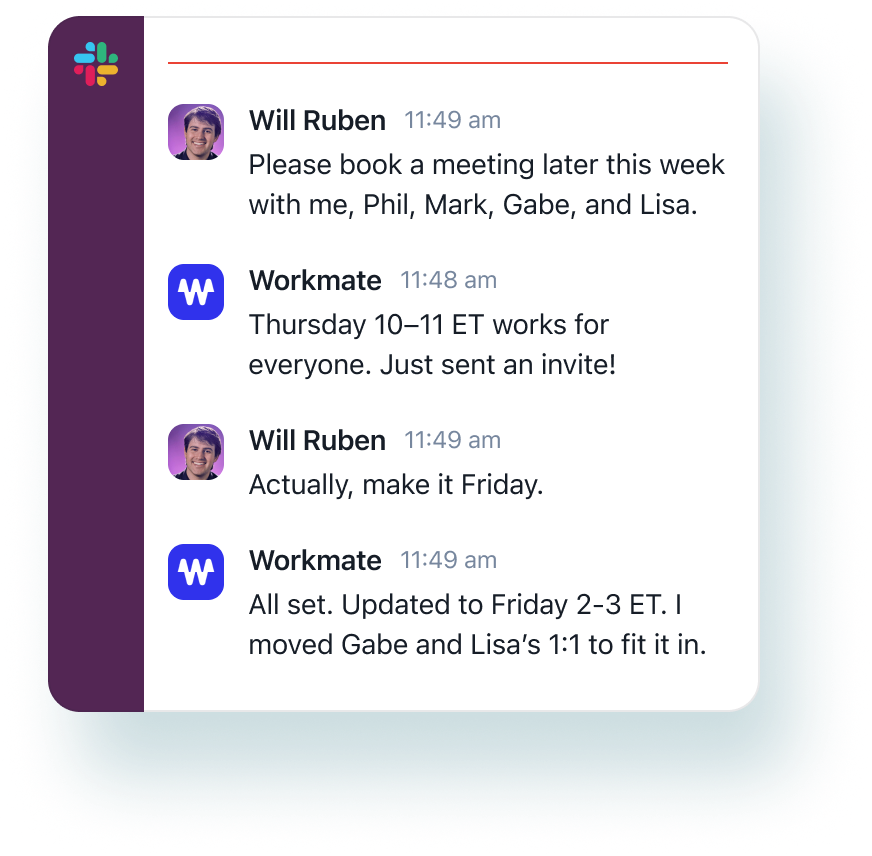
In addition to email, you can also ask Workmate to schedule meetings through Slack or SMS.
For example, you can send a message like:
“Schedule a meeting with Alex next week.”
“Reach out to Sarah to find a time to connect.”
“Set up a 30-minute call with David.”
Workmate will then contact the person and begin coordinating the meeting on your behalf.
This allows you to initiate scheduling directly from messaging tools without needing to start an email thread first.
Tips for Best Results
When asking Workmate to schedule a meeting, it helps to include any relevant details in your message, such as:
The timeframe (e.g., “next week” or “Tuesday afternoon”)
The meeting duration
The location (Zoom, office, etc.)
Workmate will combine this information with your scheduling settings to coordinate the meeting efficiently.