Emailing Your Workmate Directly (1:1 Commands)
Last updated: March 16, 2026
In addition to CC’ing Workmate on email threads, you can also email your Workmate directly to give it instructions.
This allows you to ask the assistant to manage your calendar, initiate scheduling, or update meetings without needing to start a conversation with other participants first.
You can send commands directly to your Workmate’s email address just as you would message a human assistant.
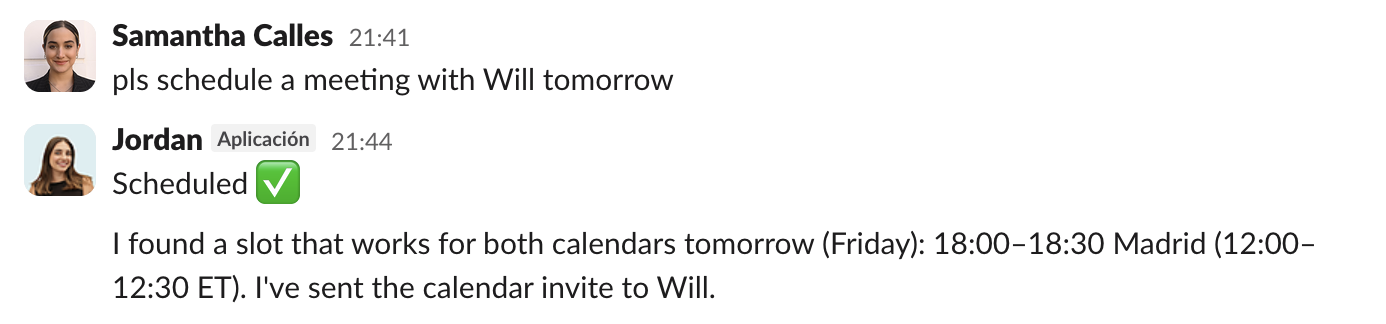
What You Can Ask Workmate to Do
When emailing Workmate directly, you can ask it to perform actions such as:
Blocking time on your calendar
Scheduling meetings with specific people
Canceling meetings
Rescheduling meetings
Checking availability and proposing times
Workmate will interpret your request and take the appropriate actions automatically.
Example Commands
You can write requests in natural language. For example:
“Please block off time for me tomorrow for focus time.”
“Please email David to find time for us to meet this week.”
“Please cancel my meeting with Jordan tomorrow.”
“Please move my 1:1 with Ammon to Friday.”
Workmate will identify the relevant meeting or scheduling request and update your calendar accordingly.