Customizing Your Workmate's Name and Email
Last updated: March 16, 2026
Workmate allows you to customize the name and email address your assistant uses when communicating on your behalf.
This helps your assistant appear more natural in conversations and align with your company’s branding.
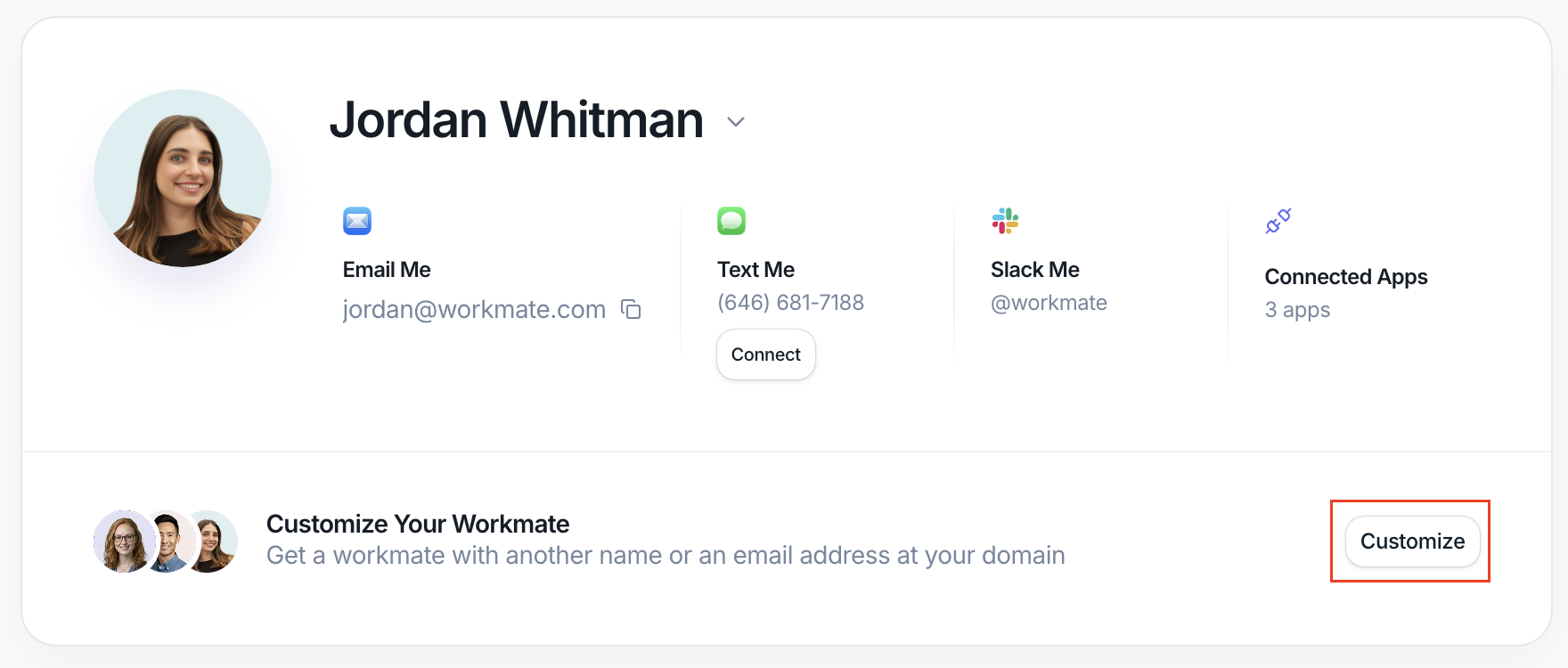
You can configure this from the Assistant page by clicking Customize next to Customize Your Workmate.
Choosing Your Assistant’s Name
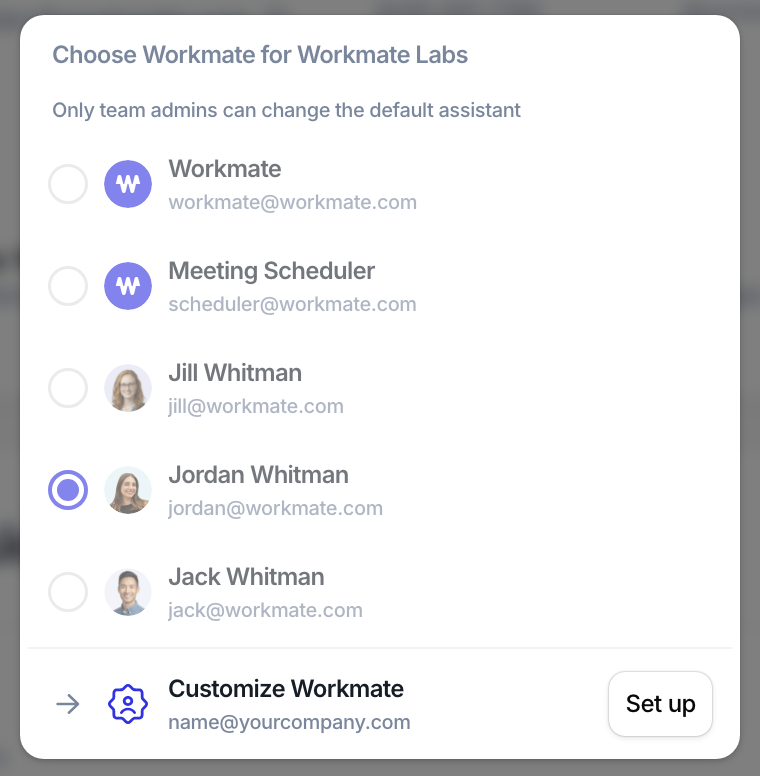
When customizing your Workmate, you can select from several predefined assistant names or create your own.
For example, you might choose names like:
Workmate
Meeting Scheduler
Jordan Whitman
Jack Whitman
The name you select is the name your assistant will use when interacting with meeting participants.
This helps make scheduling conversations feel more natural and professional.
Using a Custom Email Address
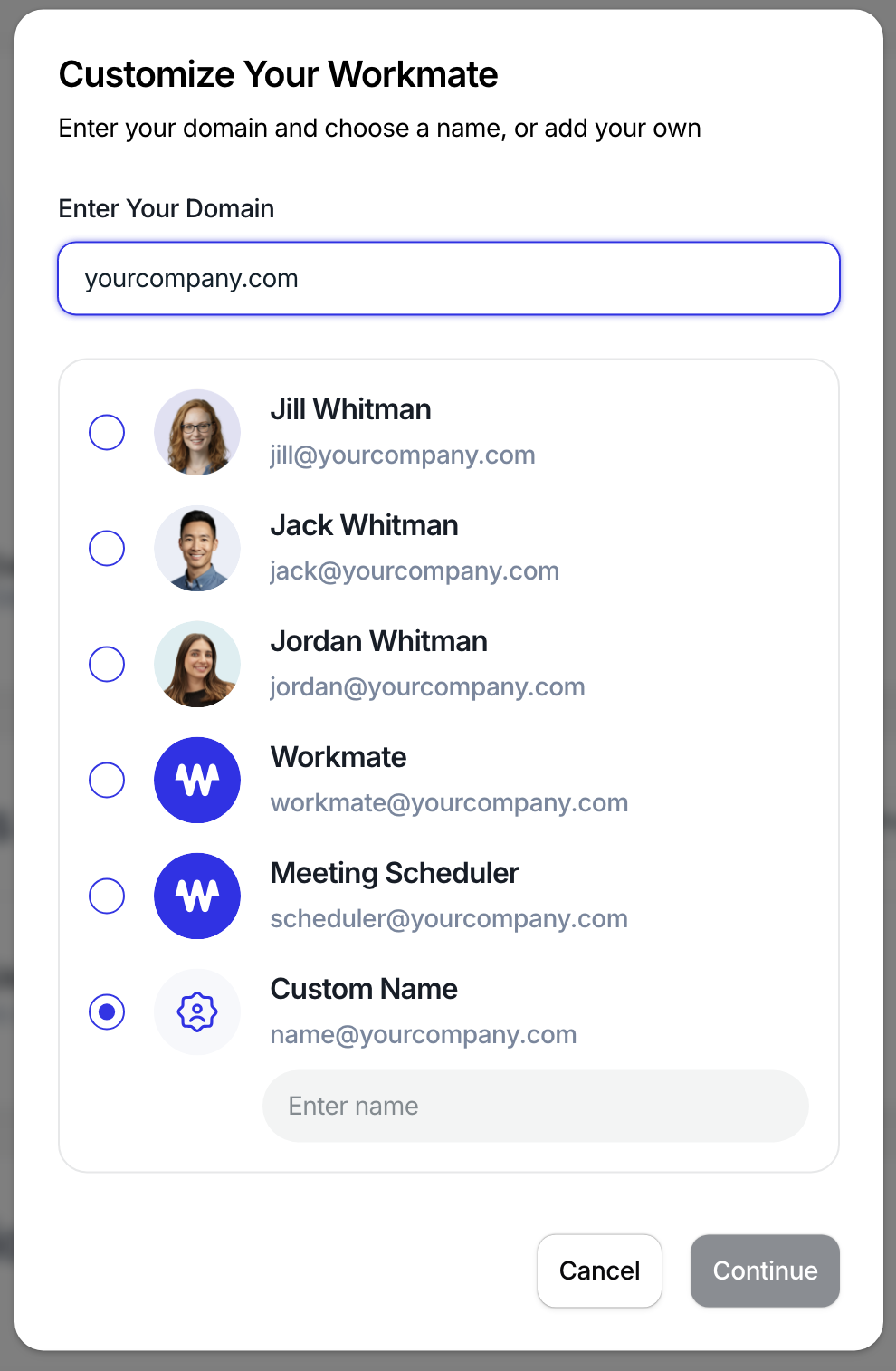
Premium and Business plans allow you to configure your assistant to send emails from an address on your own domain.
For example:
This allows the assistant to match your organization’s branding and makes communication appear more consistent with your company’s email environment.
To set up a custom email:
Enter your domain
Choose an assistant's name
Create the corresponding email address on your domain
Connect it through the setup flow
Workmate will guide you through the steps required to connect the new email address.
Why Customize Your Workmate
Customizing your assistant can help:
Align the assistant with your company branding
Make scheduling conversations feel more natural
Ensure the assistant's email address matches your organization’s domain
Maintain consistency when multiple people in a workspace use Workmate
Once configured, your Workmate will use the selected name and email whenever it communicates with meeting participants.