Connecting Multiple Calendars and Email Aliases
Last updated: March 16, 2026
Workmate can work with multiple calendars and email addresses to ensure scheduling reflects your full availability.
By connecting additional calendars and email aliases, Workmate can:
Avoid scheduling meetings when you’re busy on another calendar
Recognize scheduling requests sent to any of your email addresses
Send calendar invites from the correct account when meetings are confirmed
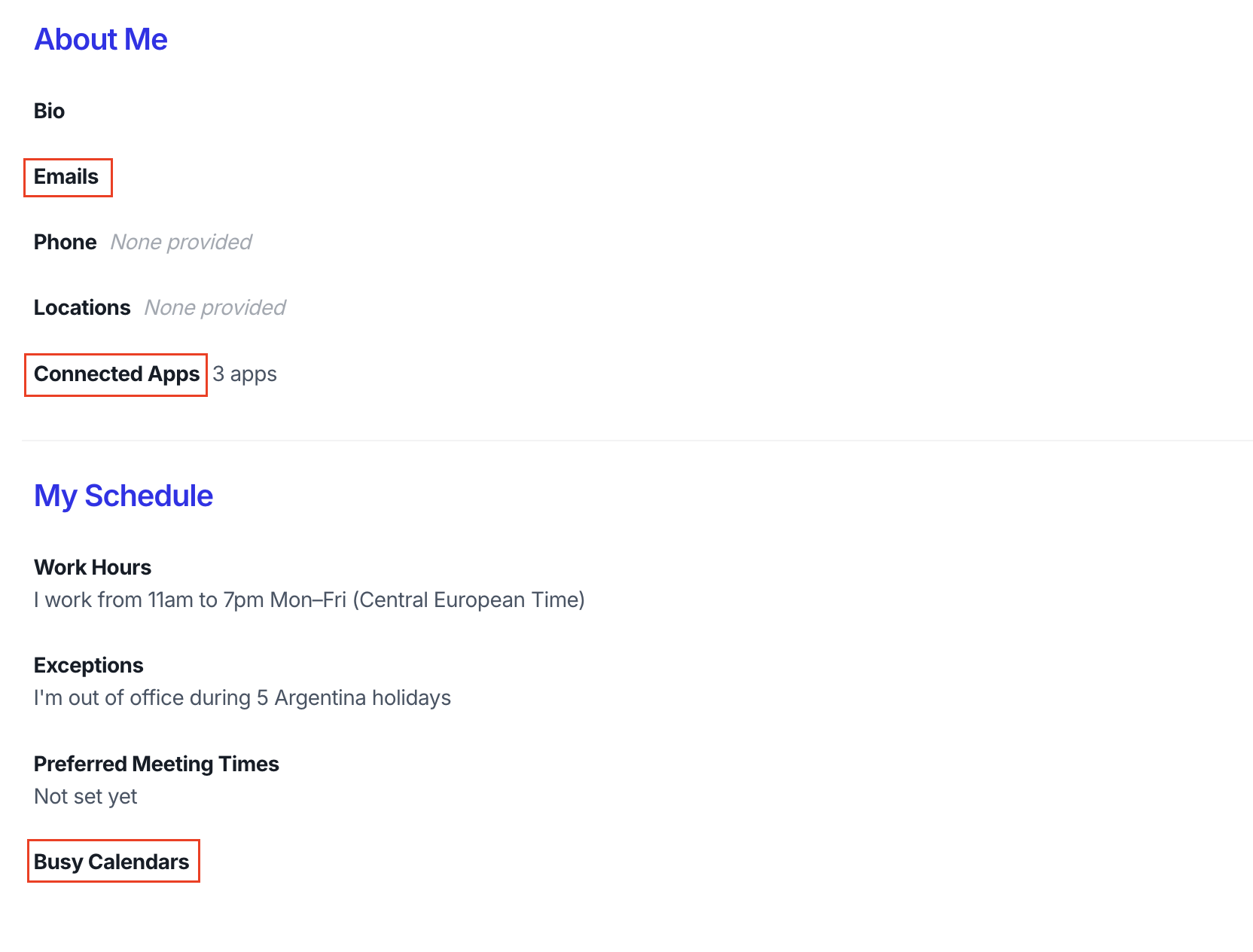
These settings are managed through Connected Apps, Busy Calendars, and Emails.
Connecting Multiple Calendars
You can connect additional Google or Microsoft calendars through the Connected Apps section on the Assistant page.
This allows Workmate to access availability from multiple calendar accounts, such as:
Your work calendar
A personal calendar
A secondary company account
Connecting multiple calendars helps ensure Workmate does not propose meeting times that conflict with events outside your primary calendar.
Selecting Busy Calendars
After connecting additional calendars, you can choose which ones Workmate should check for conflicts.
This is configured under:
Workspace Settings → Busy Calendars
Any calendar selected here will be treated as a source of availability, meaning Workmate will avoid suggesting meeting times when those calendars show you as busy.
For example, you might connect both your work and personal calendars, and mark both as Busy Calendars so meetings are not scheduled over personal commitments.
Adding Email Aliases
Email Aliases allow Workmate to recognize scheduling requests sent to multiple email addresses you use.
For example, you might send or receive emails from:
a personal email address
By adding these as Email Aliases, Workmate can correctly identify that these messages belong to you and process scheduling requests accordingly.
This ensures the assistant recognizes scheduling emails even if they are sent from or addressed to different inboxes.
How Calendar Invites Are Sent
When Workmate schedules a meeting, the calendar invitation is sent from the calendar associated with the account that initiated the scheduling request.
If the request was sent from an email address connected to a calendar, the invite will be created using that calendar.
If an alias email address is used without its own connected calendar, Workmate will send the invitation from your primary connected calendar.
This ensures meeting invitations always come from a valid calendar account.