Training Mode
Last updated: March 16, 2026
Training Mode allows you to review and approve scheduling actions before Workmate sends them.
You can find the Training Mode toggle on the Assistant page, next to Instructions for your assistant.
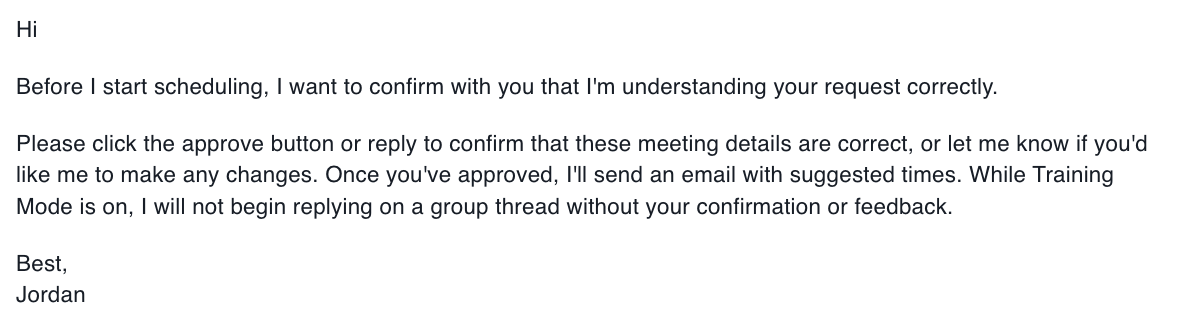
When Training Mode is enabled, Workmate will pause before sending scheduling emails or making calendar changes and ask for your confirmation first. This allows you to review how the assistant interpreted the request and make adjustments if needed.

How Training Mode Works
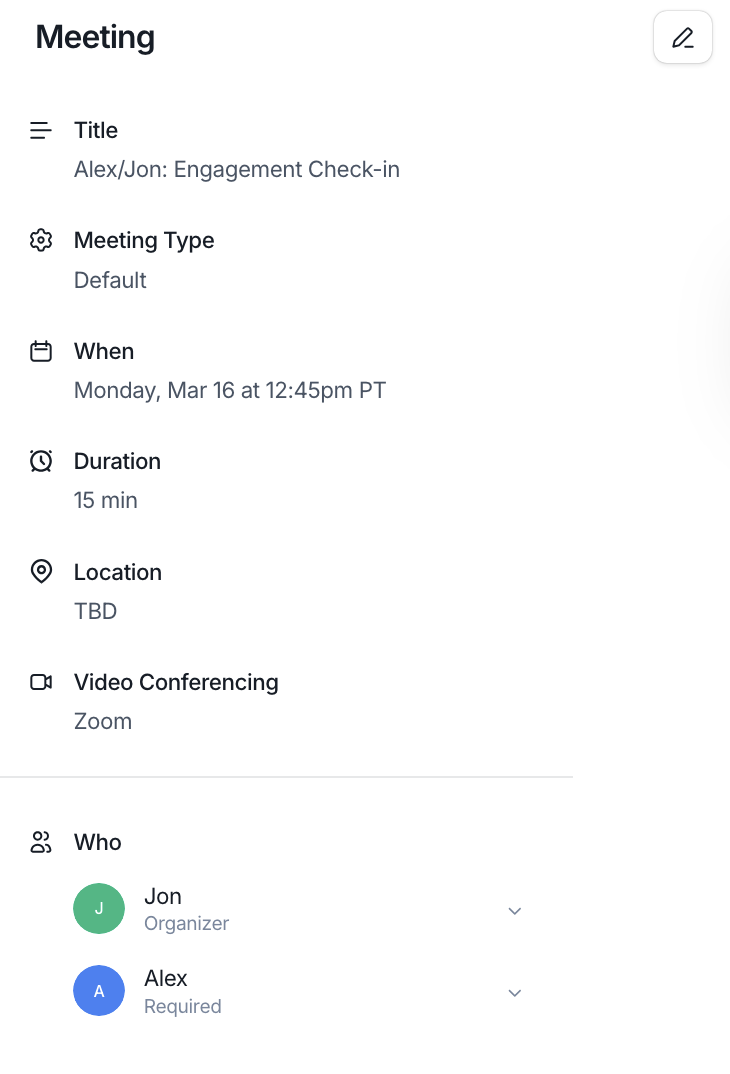
When Workmate receives a scheduling request while Training Mode is enabled, it will first generate the action it plans to take — such as proposing meeting times or sending a scheduling email.
Instead of executing the action immediately, Workmate will present it to you for review. At that point, you can:
Approve the action so Workmate proceeds
Edit the message or details before it is sent
Cancel or adjust the request
This gives you visibility into how Workmate is interpreting scheduling requests and allows you to fine-tune your instructions before letting the assistant operate fully autonomously.
When to Use Training Mode
Training Mode is especially useful when:
You are setting up Workmate for the first time
You want to test your scheduling preferences or instructions
You want to verify how Workmate drafts emails and proposes times
You are making changes to your scheduling configuration
By reviewing actions before they are sent, you can ensure Workmate behaves exactly as you expect.
Turning Training Mode Off
Once you feel confident that Workmate understands your preferences and instructions, you can disable Training Mode.
When Training Mode is turned off, Workmate will begin handling scheduling autonomously, sending emails and coordinating meetings without requiring manual approval.
This allows the assistant to manage scheduling more efficiently while still following the rules and preferences you configured.