Using Workmate with Any Email Client
Last updated: March 13, 2026
Workmate is designed to work with any email client. You don’t need to switch tools or install a special extension to use it.
Whether you use Gmail, Outlook, Superhuman, Apple Mail, or another email platform, you can include your Workmate assistant in the conversation and it will handle the scheduling for you.
All scheduling and coordination happen directly within the email thread, so you can keep working in the email tool you already use.

How It Works
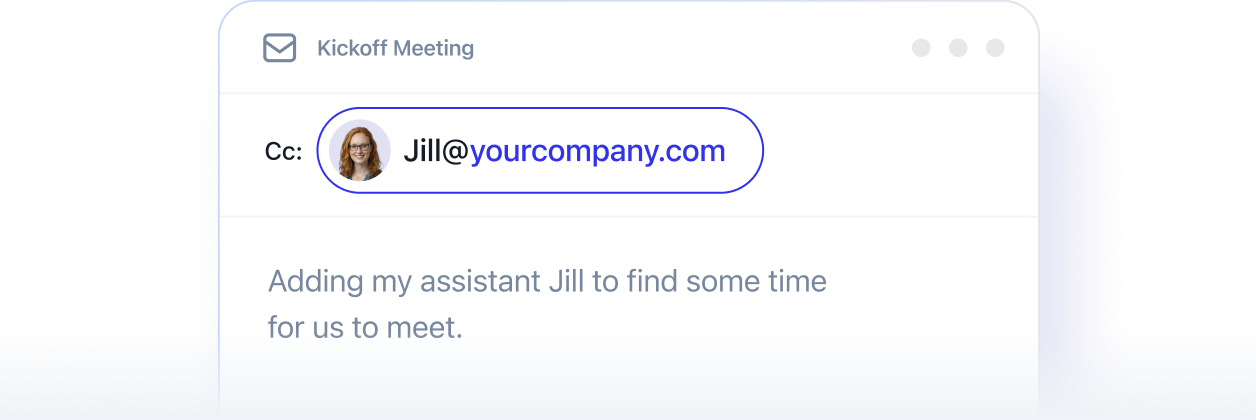
To schedule a meeting with Workmate, simply CC your assistant’s email address on an email conversation where a meeting needs to be arranged.
Once included, Workmate will:
Read the conversation
Understand that a meeting is being requested
Check your calendar availability
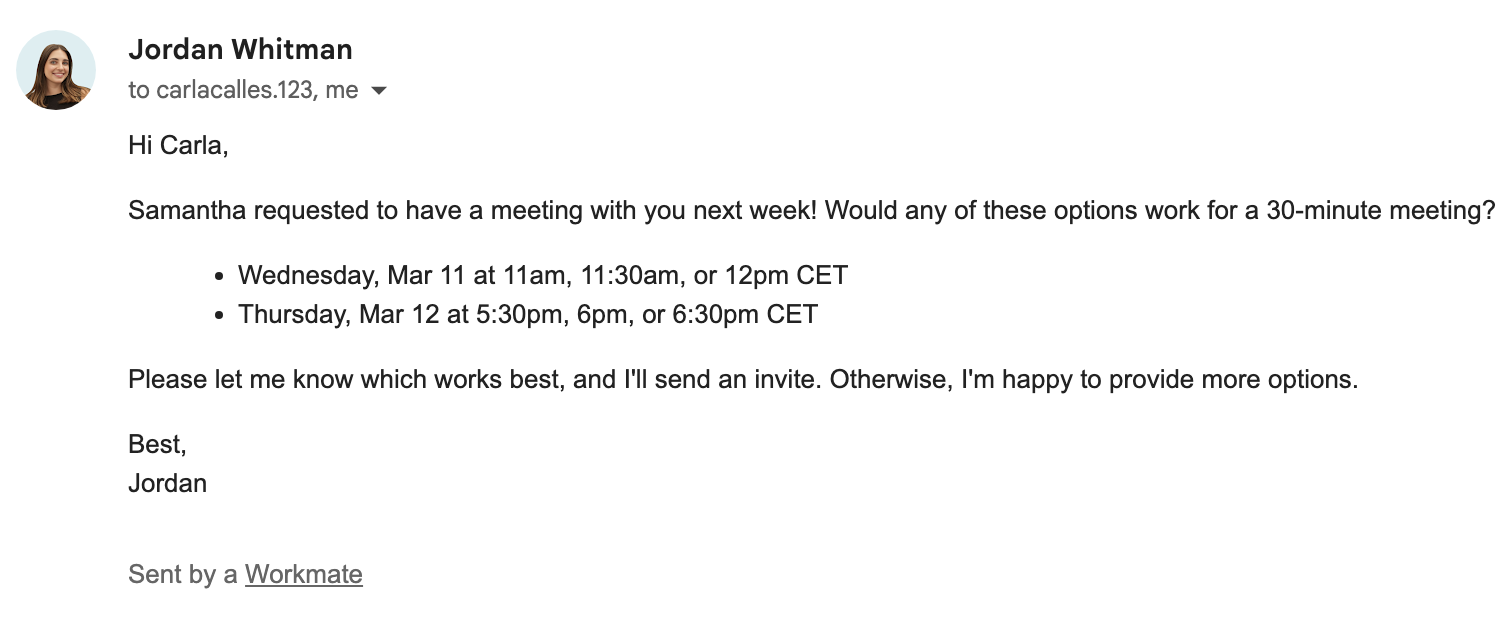
Suggest suitable meeting times
Coordinate responses with participants
Send the calendar invite once a time is confirmed
Because this process happens inside the email thread, you can continue replying normally while Workmate manages the scheduling details.
Your Calendar Still Powers Availability
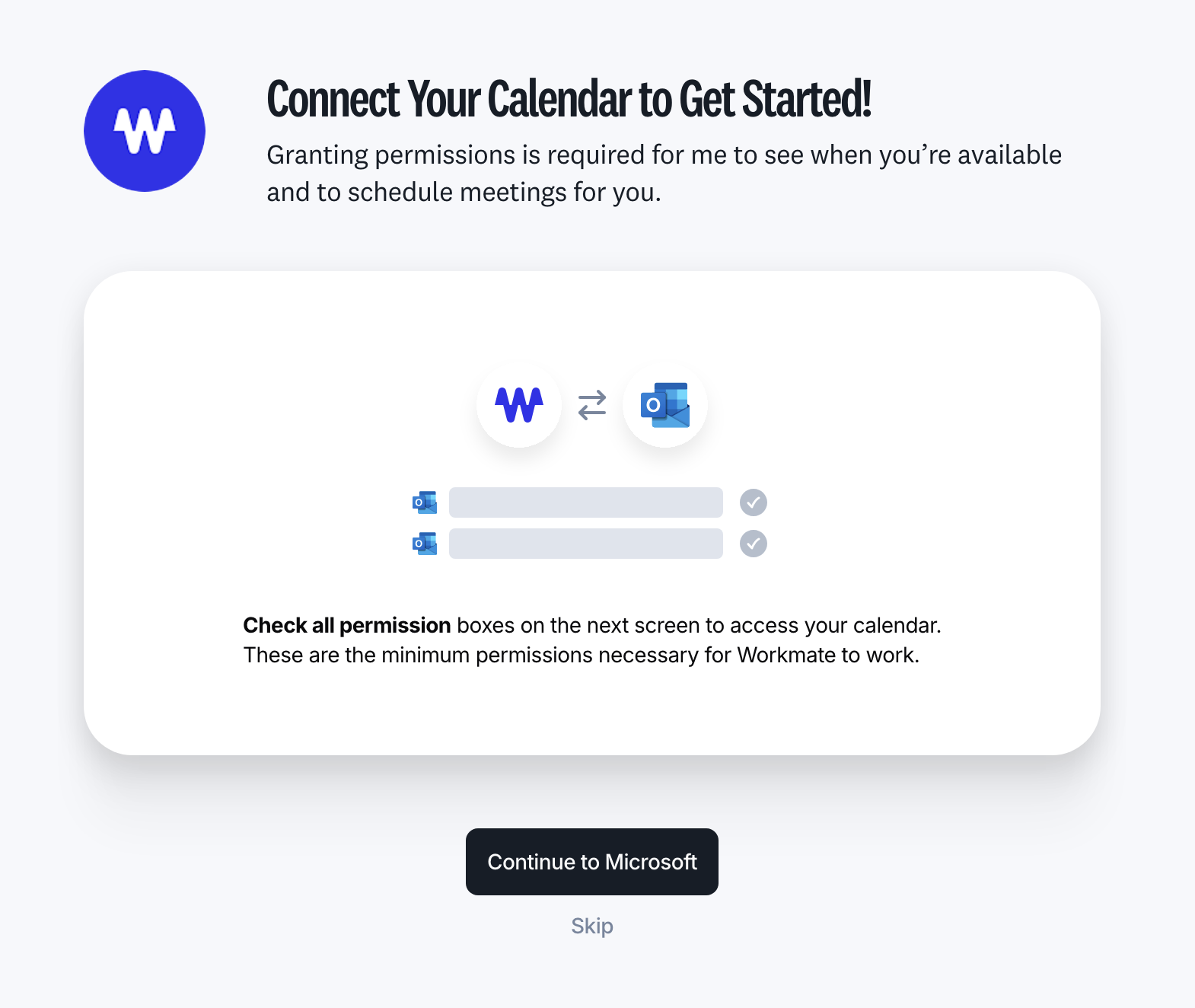
While Workmate works with any email client, it does rely on your connected calendar to manage availability.
Workmate supports calendars connected through:
Google Calendar
Microsoft Outlook / Microsoft Calendar
Zoom
Your calendar connection allows Workmate to:
Check your availability
Avoid scheduling conflicts
Create and send calendar invitations
Add meeting details such as video links or locations
Without a connected calendar, Workmate would not be able to confirm available times or create meeting events.
Why This Works Across Any Email Client
Unlike many scheduling tools that require a specific email plugin or app integration, Workmate works directly through email conversations.
This means:
You don’t need to install anything
You can use your preferred email client
Guests can participate from any email provider
Participants scheduling with you do not need to use Workmate themselves. They can simply reply to the email conversation as usual.
Example Workflow
Here is a typical example of how Workmate works in an email conversation:
You start an email with someone you want to meet.
You CC your Workmate assistant.
Workmate reads the conversation and identifies that a meeting needs to be scheduled.
It suggests available times based on your calendar.
Once a time is agreed upon, Workmate sends the calendar invitation.
From the participants’ perspective, the process looks just like a normal email conversation.
Workmate does not need access to your inbox and only sees the emails that are sent to it. It requires only calendar access to function.