Using the Scheduling Network
Last updated: March 13, 2026
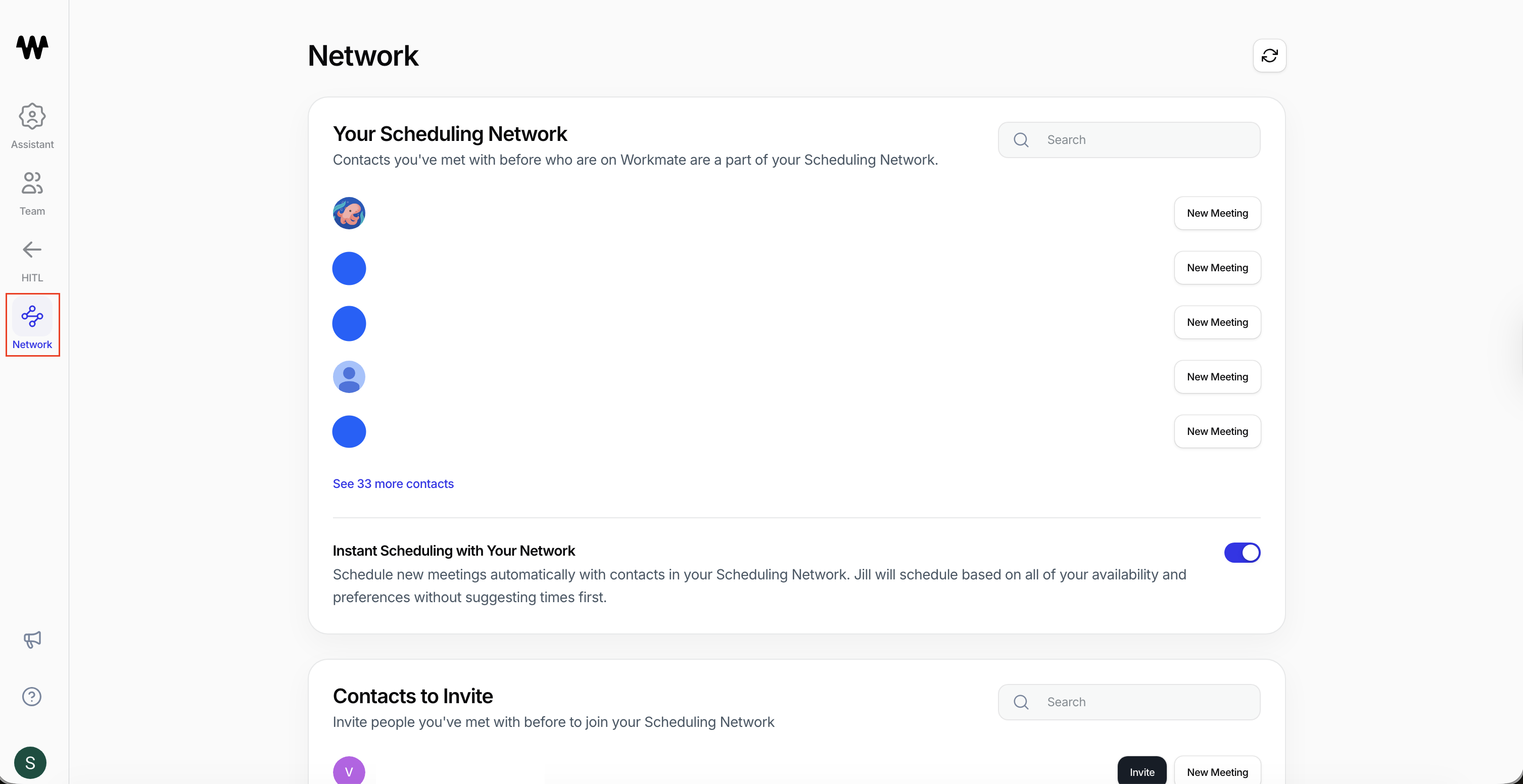
The Network page helps you manage contacts you’ve previously scheduled meetings with and enables faster scheduling with people who are also using Workmate.
When someone you’ve met with is part of Workmate, they become part of your Scheduling Network. This allows Workmate to coordinate meetings with them much more efficiently.
In many cases, Workmate can schedule meetings instantly by checking both calendars and choosing a time that works for everyone — without needing to suggest multiple options first.
Your Scheduling Network
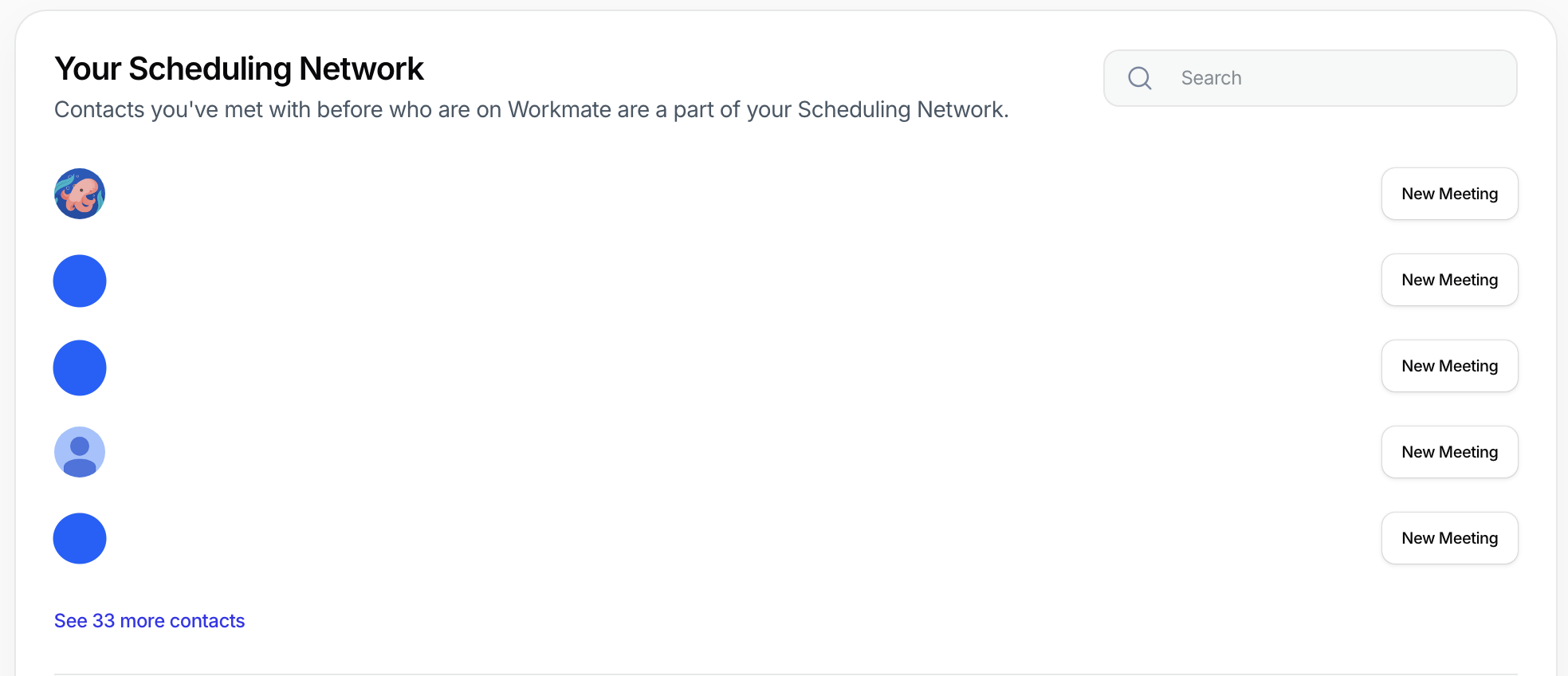
The Your Scheduling Network section shows contacts you’ve previously interacted with who are also using Workmate.
Because both sides are on the platform, Workmate can automatically access availability and scheduling preferences for both participants.
From this section, you can:
View contacts in your scheduling network
Start a new meeting instantly with them
Search for specific contacts
When you click New Meeting, Workmate can automatically select a time based on both participants’ calendars and scheduling preferences.
Instant Scheduling with Your Network
At the bottom of the network section, you’ll see the Instant Scheduling with Your Network toggle.
When this setting is enabled, Workmate can automatically schedule meetings with contacts in your network by:
Checking both calendars
Considering scheduling preferences
Selecting a mutually available time
Instead of sending time suggestions and waiting for replies, Workmate can simply book the meeting immediately when a suitable time is found.
This is particularly useful for internal meetings or frequent collaborators, where both calendars are already accessible.
If you prefer to review time suggestions before scheduling, you can disable this feature.

Contacts to Invite
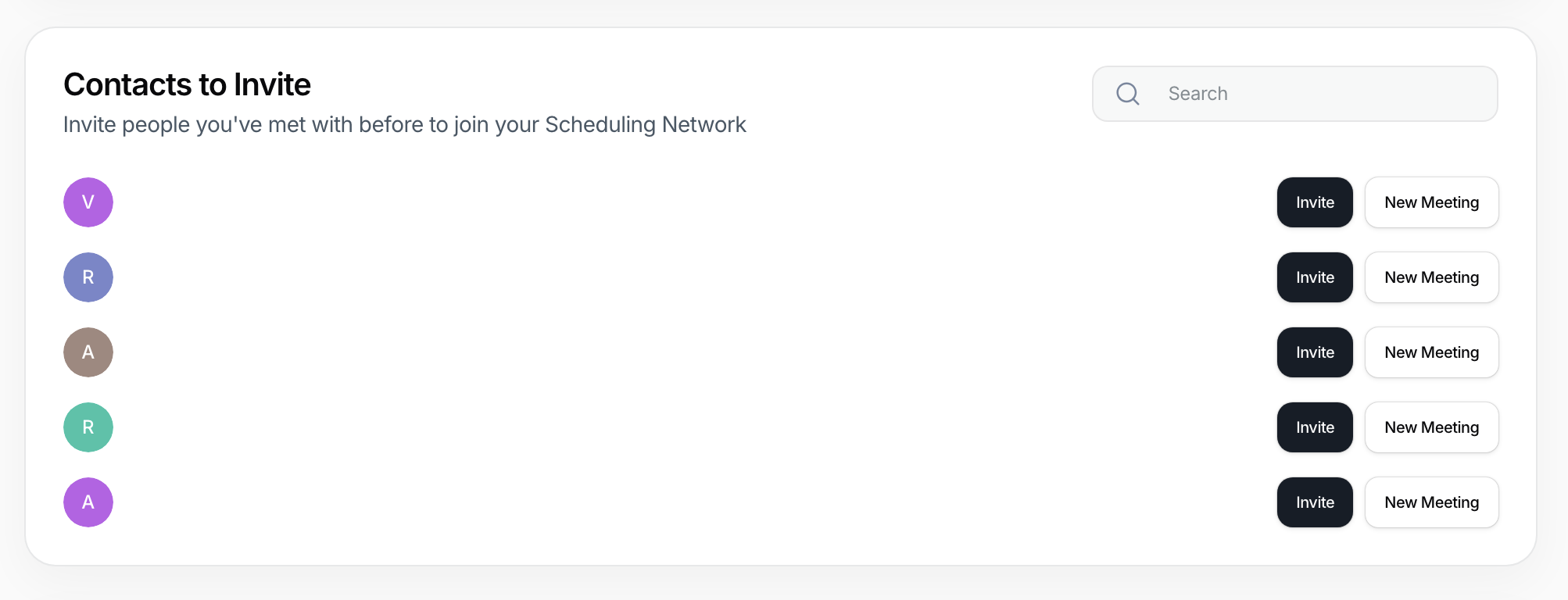
The Contacts to Invite section shows people you’ve previously scheduled with who are not yet using Workmate.
Inviting them allows you to expand your scheduling network and take advantage of faster scheduling workflows.
From this section, you can:
Invite them to join Workmate
Start a meeting immediately using the New Meeting button
Inviting contacts to Workmate enables features like:
Instant scheduling
Automated follow-ups
Shared availability coordination
Invite to Workmate
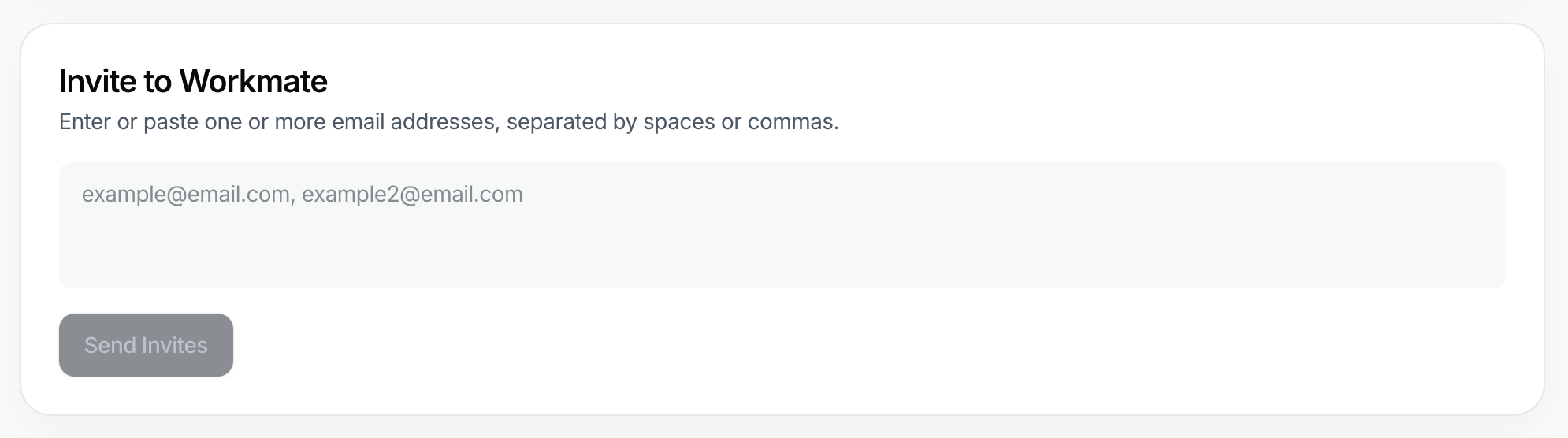
At the bottom of the page, the Invite to Workmate field allows you to manually invite additional contacts.
You can enter one or multiple email addresses, separated by spaces or commas.
Once invitations are sent, recipients will receive an email prompting them to join Workmate and connect their calendar.
After they join, they will automatically appear in your Scheduling Network, allowing faster meeting coordination in the future.