Connecting Your Calendar and Apps
Last updated: April 6, 2026
Before Workmate can schedule meetings for you, you need to connect your calendar and communication tools.
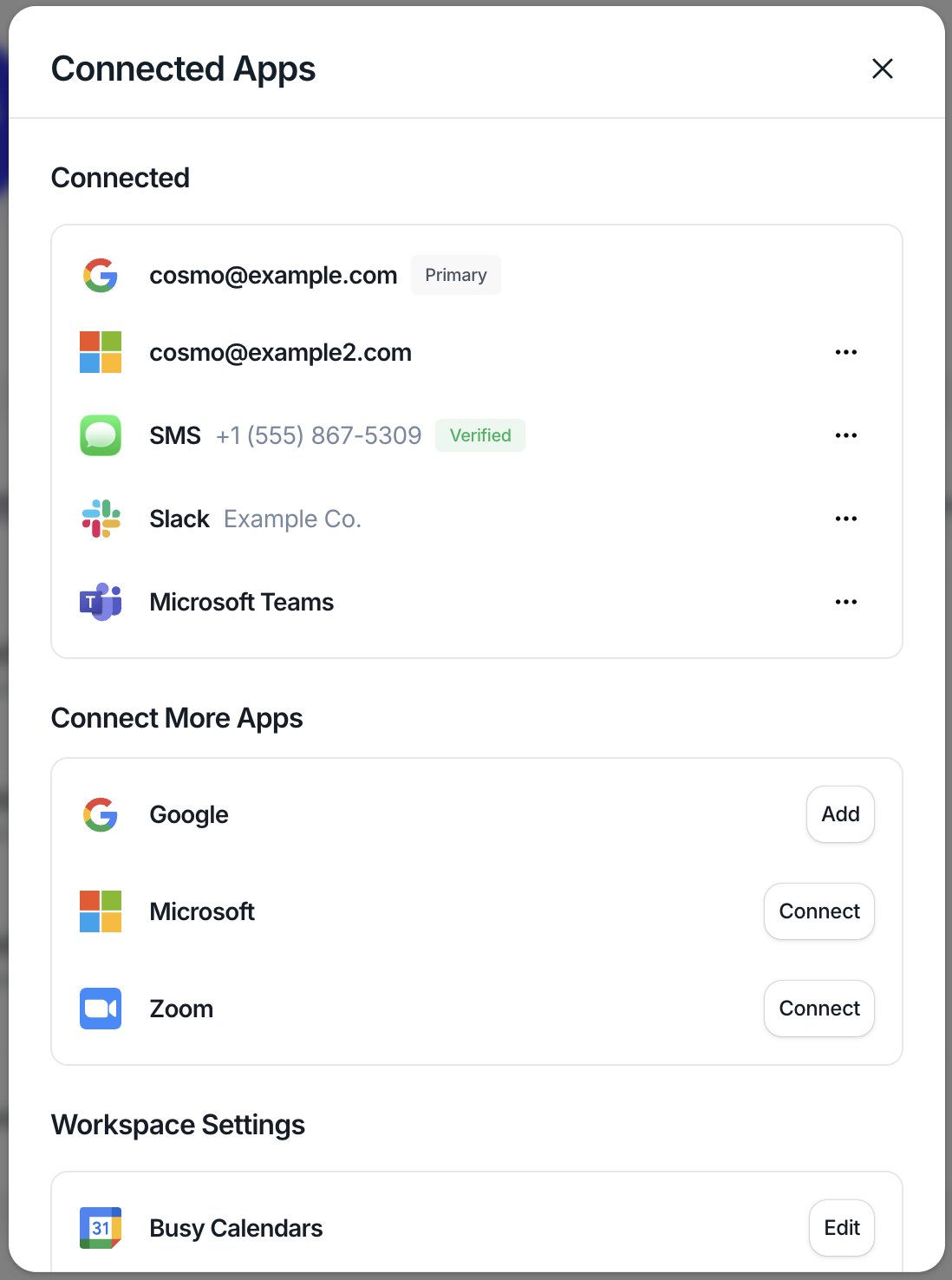
To do this, navigate to Assistant and open Connected Apps from your profile settings.
From there, you can connect the tools Workmate will use to communicate and coordinate meetings.
Supported integrations include:
Google (Gmail and Google Calendar)
Microsoft (Outlook and Microsoft Calendar)
Microsoft Teams (for in-app scheduling and meeting links)
Zoom (for video conferencing links)
SMS (for text-based scheduling)
Slack (for in-app scheduling conversations)
Once connected, Workmate can read scheduling conversations and coordinate meetings across these platforms.
Managing Your Calendars
Workmate checks your calendar to determine when you are available for meetings.
You can manage which calendars are used for availability under Busy Calendars.
This allows you to:
Include multiple calendars when checking availability
Avoid scheduling conflicts across different accounts
Ensure Workmate sees your full schedule
Adding Email Aliases
If you use multiple email addresses, you can add them as Email Aliases.
This allows Workmate to recognize scheduling requests sent from any of your email accounts.
For example, if you email from a secondary address you’ve added, Workmate will still recognize the message and assist with scheduling.
Important Notes
You can connect multiple Google accounts, but only one will be marked as Primary.
Busy Calendars determine which calendars Workmate checks when suggesting availability.
Email aliases help Workmate recognize you across different email addresses.