Reconnecting your calendar
Last updated: March 16, 2026
Workmate needs access to your connected calendar in order to schedule meetings and check your availability.
In some cases, the connection between Workmate and your calendar may expire or be interrupted. When this happens, Workmate will temporarily be unable to view your availability or schedule meetings on your behalf.
If this occurs, you will receive an email notification from Workmate letting you know that calendar access has been lost.
How to Reconnect Your Calendar
Reconnecting your calendar only takes a few seconds.
Log in to app.workmate.com
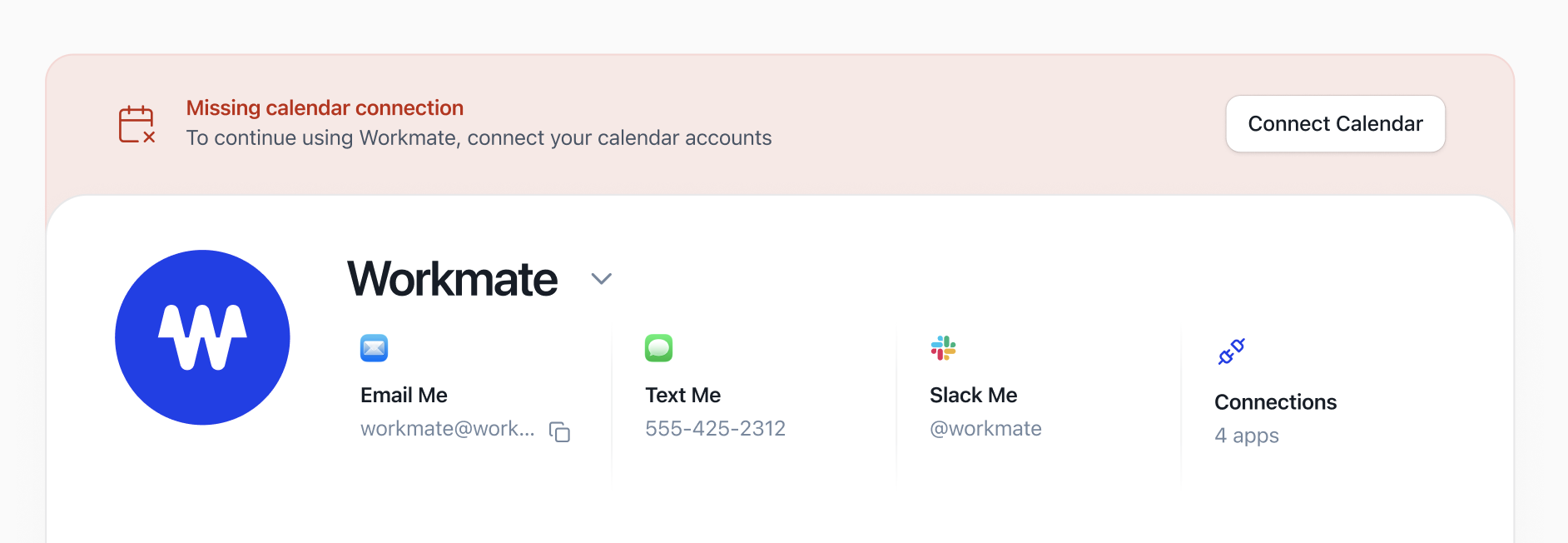
You will see a notification indicating that calendar access has been lost
Click the Reconnect Calendar button
Follow the prompts to reconnect your Google or Microsoft calendar
Once the connection is restored, Workmate will immediately regain access to your availability and resume scheduling meetings normally.
Why Calendar Connections Sometimes Expire
Calendar connections can occasionally expire for reasons such as:
Security tokens expiring
Changes to your Google or Microsoft account permissions
Updates to your connected apps
This is normal and can be resolved quickly by reconnecting your calendar through the app.